
How to Reset a Globe Router and Recover Access Safely
Restart the Globe router before factory-resetting it. A restart normally keeps the WiFi and ISP configuration. A factory reset erases customized settings and can remove information needed for the internet connection on some Globe fiber equipment.
If you must factory-reset, first identify the exact model, photograph its label for private reference, record any accessible settings, and obtain model-specific instructions. Keep the router powered, use the recessed RESET control—not a WPS button—and release it only when the indicator behaviour described by the manufacturer occurs. Then wait for the device to restart and reconnect using the factory information on the label.
Choose the Correct Recovery Action
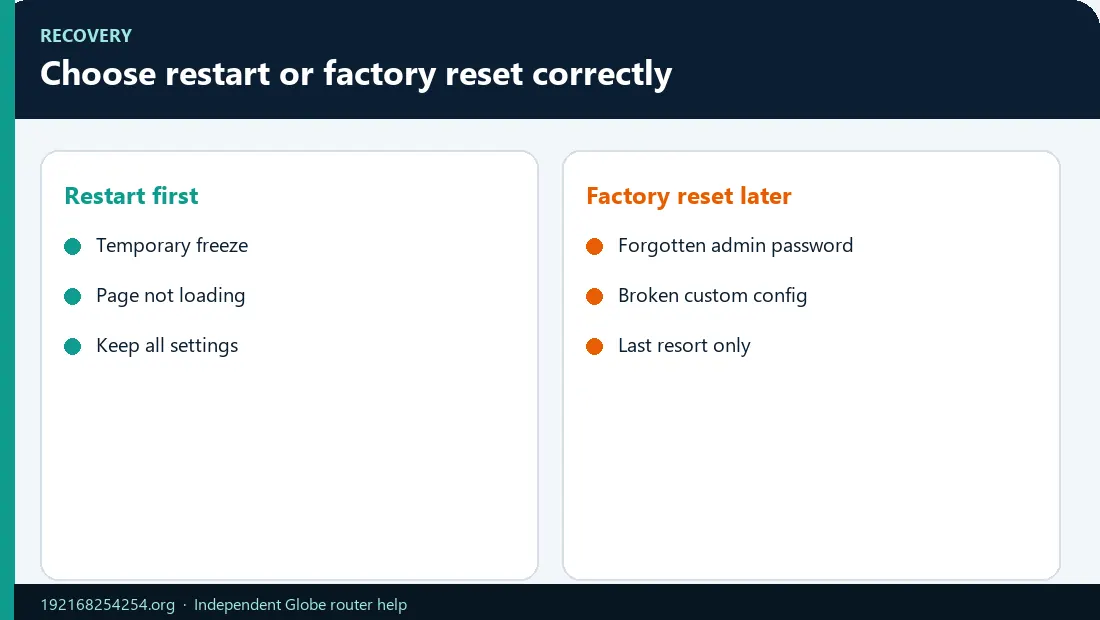
If the admin page still opens, use the Globe router login guide if the dashboard still opens and change settings there instead of resetting.
| Action | What it does | Settings retained? | Use it when |
|---|---|---|---|
| Restart/reboot | Restarts the router software and network services | Normally yes | Dashboard freezes, WiFi becomes unstable, or a temporary problem occurs |
| Power cycle | Fully removes and restores power | Normally yes | The device is unresponsive or a normal reboot is unavailable |
| Change WiFi password | Replaces only the wireless security key | Yes, except connected devices must rejoin | You still have dashboard access and want a new WiFi key |
| Change admin password | Replaces the dashboard login password | Yes | You can log in and want to secure/recover administration |
| Factory reset | Restores factory configuration | No | Last resort after forgotten credentials or unrecoverable configuration, with model-specific instructions |
If your goal is only to replace the WiFi key, follow how to change the Globe WiFi password. Do not erase the whole modem.
Restart a Globe Router Without Erasing Settings
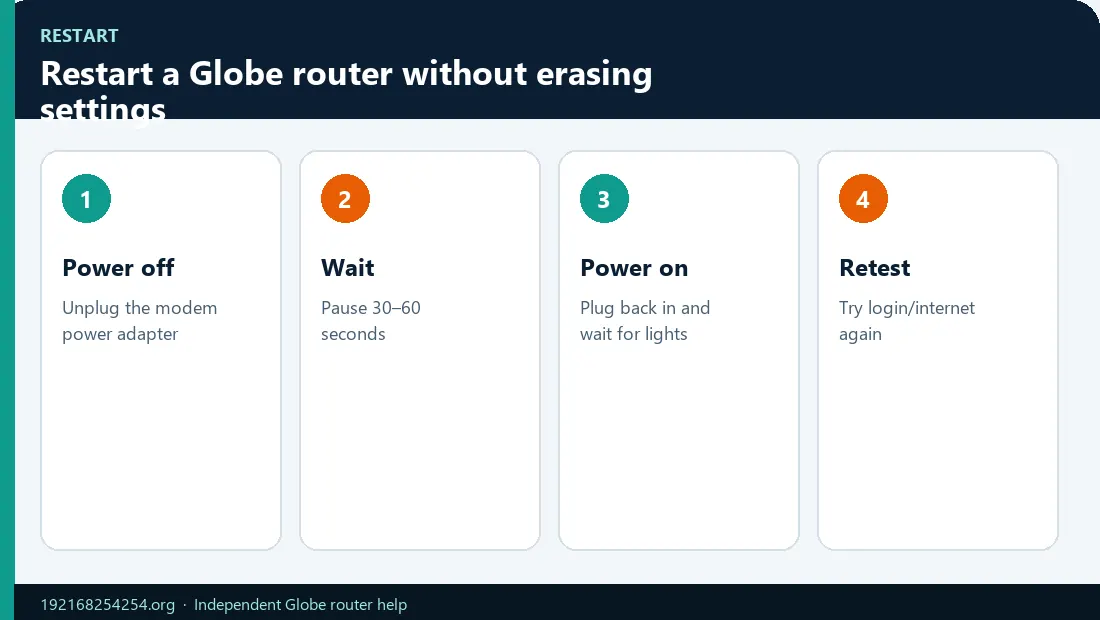
Using the dashboard
If you can still log in:
- Open the router dashboard.
- Look under System, Maintenance, Device, or Administration.
- Select Restart or Reboot—not Restore, Reset, or Factory Default.
- Confirm and wait for all normal service indicators to return.
Using the power control
- Turn the modem/router off using its power button, or unplug the power adapter if there is no usable button.
- Wait about 30 seconds.
- Restore power.
- Allow several minutes for the device, WiFi, and internet service to initialize.
Globe's basic WiFi troubleshooting guidance recommends restarting the modem, waiting 30 seconds during the power-off stage, and checking wires and cables. A restart should be the first recovery action for a temporary fault.
Before You Factory-Reset
Complete this checklist:
- Identify the exact model and service. Home Prepaid WiFi, GFiber ONU/ONT, 5G CPE, and a separate mesh router are not the same device.
- Confirm which password is forgotten. The WiFi key, router-admin password, GlobeOne password, and prepaid OTP have different recovery paths.
- Read the label. Factory WiFi and dashboard information may already be available.
- Try LAN access. If only the WiFi password is unknown, an Ethernet-connected computer may let you open the dashboard and change it without resetting.
- Confirm the gateway. A different router may be the device you are actually trying to manage.
- Record the current configuration if login still works. Photograph or export settings only for your private records. Protect backups because they may contain sensitive data.
- Check Globe support availability. You may need ISP assistance if the WAN/PON service does not recover.
- Disconnect unnecessary personal equipment. Leave the required power, fiber/coax/DSL, and one management device connected as appropriate.
Do not reset an ISP-supplied router merely to clear browser history, improve a weak signal, or correct a typing error in 192.168.254.254.
Why the Exact Model Matters
The recessed control may be labelled RESET, WPS/RESET, or something similar. Indicator patterns and hold durations vary even within one manufacturer.
Huawei's general router guidance says to power the device, press and hold the reset hole/button, and release when the indicator turns off or flashes. A separate Huawei CPE instruction uses different timing and indicator behaviour. This variation is exactly why the label/manual for the installed model must control the procedure.
For a Globe-supplied fiber ONU/ONT, the manufacturer's generic reset method does not confirm what Globe provisioning will survive. Manufacturer instructions describe the hardware action; Globe controls the service configuration.
Use the Globe router model guide to identify your device before proceeding.
General Factory-Reset Workflow
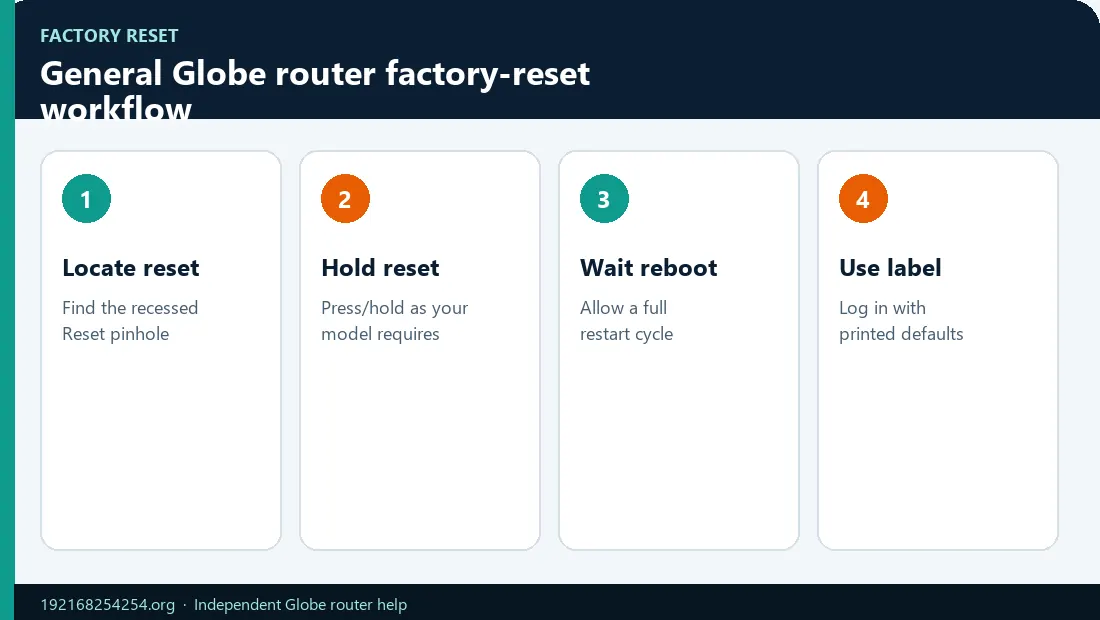
Use these steps only after confirming that the physical control and indicator behaviour match the exact model documentation.
- Keep the router powered on. Wait until it has completed its normal boot.
- Locate the recessed Reset control. Check the label/manual so you do not press WPS, WLAN, or another button.
- Use a suitable blunt pin tool. Avoid a sharp object that can damage the switch.
- Press and hold Reset. Watch the indicators and release only at the model's documented signal—such as the indicator turning off, blinking, or all indicators changing state.
- Do not interrupt power during restoration. Allow the device to reboot fully.
- Find the factory SSID. Use the network name on the label if it reappears.
- Connect with the label WLAN key. Then open the factory dashboard address shown on the label or active gateway.
- Verify internet service before customization. Check expected power, PON/LOS, mobile-signal, or WAN indicators.
- Re-secure the device. Change confirmed default admin and WiFi passwords, using different values.
If the label SSID does not appear, wait for boot completion, check whether separate 2.4 GHz/5 GHz names exist, and use LAN access if supported. Do not repeat the reset multiple times without diagnosing the result.
Resetting by Globe Service Type
Globe Home Prepaid WiFi
The modem label is especially important. Globe says it can include the Home Prepaid WiFi number, SSID, password, modem IP, default username, and WLAN key. After a factory reset, the device may return to those label values.
Before resetting, check account/load and signal problems using Globe's Home Prepaid WiFi troubleshooting. A no-internet condition caused by insufficient load or weak signal is not fixed by erasing WiFi settings.
Globe GFiber or Globe At Home Fiber
The installed box may combine an optical network terminal and router. A factory reset can affect WAN, VLAN, PPPoE/IPoE, voice, management, or other ISP settings depending on the model and provisioning method. If PON does not return to its normal state, LOS remains red, or WiFi works without internet after reset, contact Globe rather than entering values found online.
Globe At Home 5G WiFi
Current Globe 5G equipment can use a device screen and setup workflow. Check the screen, label, and Globe 5G WiFi help. Do not apply a legacy LTE modem reset video to an unidentified 5G device.
Huawei AX3 mesh or another separate router
Resetting the mesh/router does not reset the upstream Globe modem, and resetting the modem does not necessarily reset the mesh. Identify which device owns the SSID and default gateway. Globe documents the Huawei AX3 through the HUAWEI AI Life app in its mesh help.
What a Factory Reset Can Erase
- WiFi name and password
- router-admin password and local user settings
- guest networks
- parental controls and device blocks
- DHCP reservations and custom LAN addressing
- port forwarding and firewall rules
- DNS changes
- band steering or separate 2.4/5 GHz settings
- WAN, VLAN, PPPoE/IPoE, VoIP, or ISP-management configuration on some equipment
The operating system/firmware itself remains installed; “factory reset” means restoring its configuration state, not removing the router software.
Recover After the Reset
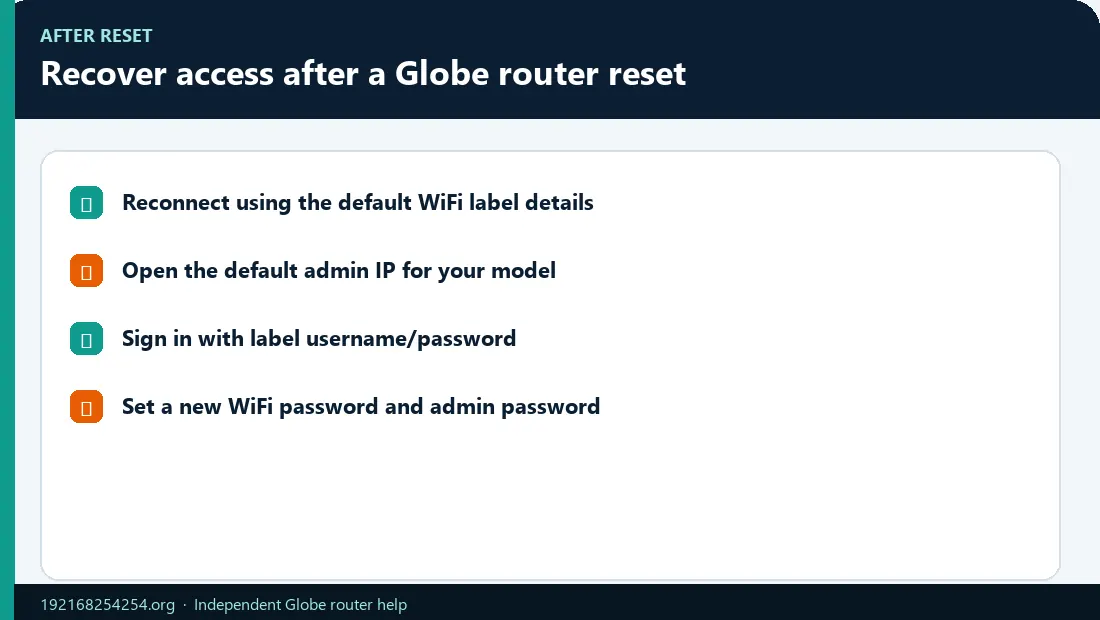
When the router finishes booting, find the router IP and default gateway after reboot so you open the address that is actually active, not an assumed factory IP.
1. Reconnect locally
Use the factory SSID and WLAN key from the label, or connect one computer to a LAN port. If multiple label networks are shown, select the appropriate 2.4 GHz or 5 GHz SSID.
2. Open the correct dashboard
Use the Modem IP on the label or read the active default gateway. For supported Globe Home Prepaid WiFi, this can be http://192.168.254.254/.
3. Use the factory dashboard credentials
Enter the label-specific default username/login password. Do not confuse these with the WLAN key. See the credential guide if fields are unclear.
4. Confirm service status
Check the router dashboard and physical indicators before renaming networks. If local access works but internet does not, the problem is now on the WAN/service side.
5. Secure and customize
Change the router-admin password, WiFi password, and SSID intentionally. Reconnect devices one by one. Avoid restoring an old configuration backup if its original error or compatibility is unknown.
No Internet After a Globe Router Reset
Use this state table:
| State after reset | Meaning | Next action |
|---|---|---|
| Factory WiFi appears and dashboard opens; internet works | Reset completed successfully | Change admin/WiFi passwords and reconnect devices |
| WiFi appears and dashboard opens; internet fails | Local LAN works; WAN/provisioning, signal, load, or outage needs attention | Check PON/LOS/WAN/signal/account, then contact Globe |
| WiFi appears but dashboard does not open | Gateway/address or interface issue | Read the active gateway and use the troubleshooting page |
| No factory SSID appears | WiFi may be disabled, boot incomplete, or reset unsuccessful | Wait, check indicators, use LAN/model instructions, contact support |
| LOS is red or PON is abnormal | Optical link/service issue | Check the fiber cable without bending/unplugging unnecessarily; contact Globe |
| Internet returned but old settings are gone | Expected factory-reset effect | Rebuild only the necessary settings |
Do not copy another subscriber's WAN, VLAN, serial, LOID, or PPPoE information. Globe must provision the installed service correctly.
Resetting a Forgotten WiFi Password vs Admin Password
Before you wipe the network, see connected devices before you wipe WiFi access and note which clients are still authorized.
If another authorized device is still connected to WiFi, it may be able to display or share the saved wireless password. If you can reach the dashboard through LAN or an existing session, change the WiFi key directly.
If only the admin password is forgotten but WiFi works, check the label and owner records first. A factory reset is justified only when supported recovery is unavailable and you accept the configuration loss.
Common Mistakes
- Pressing WPS instead of Reset
- Resetting the mesh node while intending to reset the Globe modem
- Releasing based on a generic video rather than the model's indicators
- Removing power during the reset/reboot
- Assuming
admin/adminwill be restored on every model - Expecting the custom SSID to remain after factory reset
- Repeating resets when WAN provisioning is the real problem
- Entering leaked superadmin or service values after reset
- Publicly sharing a label photo while asking for help
Frequently Asked Questions
How do I reset Globe At Home Prepaid WiFi?
First identify the exact model and read its reset instructions. Keep it powered, press the verified recessed Reset control until the documented indicator change, allow it to reboot, then reconnect with the factory label information.
How long should I hold the reset button?
There is no universal duration. Huawei's own instructions vary across router and CPE products. Use the exact model manual and indicator behaviour.
Will resetting change the Globe WiFi password?
Yes, a factory reset normally restores the factory WiFi configuration, often matching the device label. A restart does not normally change it.
Will resetting restore the admin password?
It generally restores the device's factory login state, but the actual username/password depends on the model and Globe firmware.
Why is there no internet after reset?
The router may have lost WAN/VLAN/PPPoE/IPoE or other ISP-managed configuration, or the service may have a separate signal, optical, account, or outage problem. Contact Globe with the model and indicator state.
Does restart erase settings?
Normally no. Restart/reboot reloads the device while retaining its configuration.
Should I reset to fix 192.168.254.254 not opening?
Not first. Confirm the WiFi/LAN, IP format, active gateway, VPN/mobile data, browser, and model. Use the not-working guide.
Can I reset only the WiFi password?
If you can log in, change the WLAN key in the WiFi security settings. That is a configuration change, not a factory reset.
Sources
- Globe: Basic WiFi troubleshooting
- Globe: Home Prepaid WiFi troubleshooting
- Globe: Home Prepaid WiFi setup and label information
- Globe: 5G WiFi help
- Huawei: Restore a router to factory settings
- Huawei: Restore a CPE to factory settings
Last reviewed: 2 October 2026