
Globe Router Login: Open the Admin Dashboard
To log in to a supported Globe At Home router, connect your phone or computer to that modem's WiFi or LAN, open http://192.168.254.254/ in the browser address bar, and enter the dashboard username and password printed on the modem label. Globe currently documents this address and label-first login method for supported Home Prepaid WiFi equipment.
Before You Log In
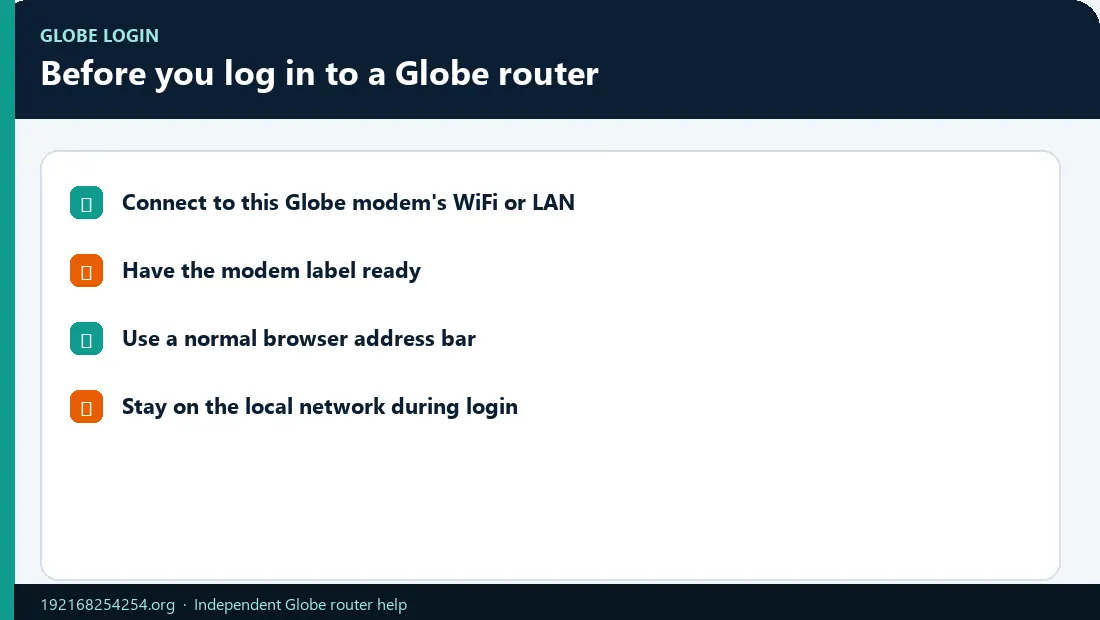
Check these four items first:
- You are connected to the Globe modem. Use its primary WiFi network or a LAN cable. A guest network, mobile data, another router, or a neighbour's WiFi may not reach the dashboard.
- You know which address belongs to the device. Many supported Globe Home Prepaid WiFi units use
192.168.254.254, but another model may use a different address, hostname, app, or screen-based setup. - You have the dashboard credentials. Look for labels such as Default Username, Login Password, Web UI Password, or Admin Password. Do not automatically enter the WLAN key in the login form.
- You know the model. The model number is usually on the back or bottom label. It determines the interface, gateway, credentials, and available settings.
Globe Router Login Steps
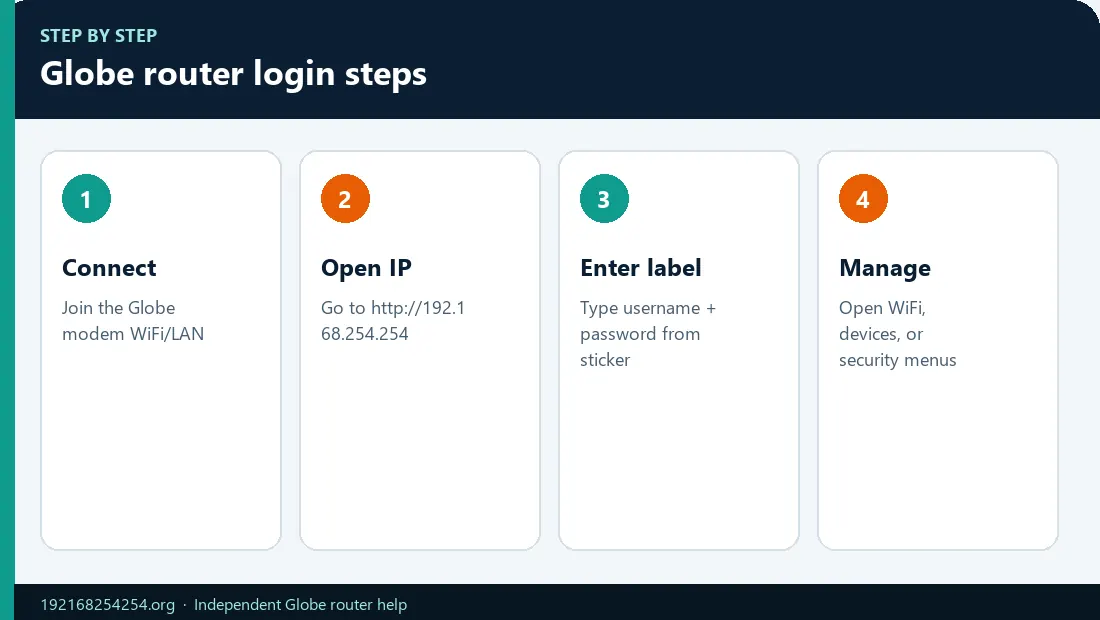
1. Connect to the modem's WiFi or LAN
On a phone, choose the SSID shown on the modem label and enter the WiFi or WLAN key. On a computer, you may instead use an Ethernet cable between the computer and a LAN port. Do not connect the cable to a port labelled WAN.
If the WiFi has no internet, stay connected for the login test. The local admin page can still work when Globe's internet service is unavailable.
2. Open a browser address bar
Use Chrome, Safari, Edge, or Firefox. Tap or click the bar that normally shows a website address. Do not type the IP into a Google search field.
3. Open the documented local address
Enter:
http://192.168.254.254/
Use the number 1, not the letter l. Do not add www, spaces, or an extra number group. Globe's current Home Prepaid WiFi setup page and dashboard instructions document 192.168.254.254 for supported equipment.
If this address does not match the IP or hostname on your label, use the label value. Globe also documents http://globebroadband.net in a separate Home Prepaid WiFi workflow, demonstrating why one address should not be forced on every modem.
4. Enter the router-admin details
Use the username and password associated with the modem dashboard. These may be printed beside the modem IP on the label. They are not necessarily the same as:
- the WiFi password used to join the network;
- your GlobeOne email, mobile number, or password;
- a Home Prepaid WiFi number or OTP;
- a default pair copied from a different model.
The correct value can change with the device model, firmware, service, and previous configuration. If the label credentials do not work, use the Globe router username and password guide instead of trying random combinations.
5. Confirm which dashboard opened
A successful login may show menus such as Home, WiFi, WLAN, Network, Connected Devices, Security, Advanced, or System. Menu names vary. The login-page logo and model information should correspond to the device label.
Do not change WAN, PON, VLAN, PPPoE/IPoE, VoIP, TR-069, or other ISP-managed values merely because they are visible. Record the original value before making any network change.
Which Globe Service or Device Do You Have?
Start by matching the equipment type, then identify your Globe router model before login so you use the correct IP, app, or screen workflow.
The words “Globe router” can refer to different kinds of equipment. Use the matching path below.
| Globe setup | Where to start | What to expect |
|---|---|---|
| Home Prepaid WiFi | Check the back/bottom label for SSID, WiFi password, modem IP, default username, and dashboard password | Often a browser dashboard; supported units use 192.168.254.254, while some official instructions use globebroadband.net |
| GFiber or Globe At Home Fiber | Identify the ONU/ONT model and read the active default gateway | Interface and visible controls depend on the manufacturer, Globe firmware, and account role |
| Globe At Home 5G WiFi | Check the device screen and current Globe instructions | Setup can use the router screen, QR codes, GlobeOne, and a device-specific workflow |
| Huawei AX3 mesh from Globe | Use the HUAWEI AI Life app and Globe's mesh guidance | This is a mesh system; its management path is not necessarily the same as the Globe modem/ONT |
| A personal router behind the Globe modem | Read the default gateway on the connected device | The gateway may lead to the personal router first; the Globe box can be on another subnet |
Globe's 5G WiFi help uses the device screen during setup. Globe's HUAWEI AX3 mesh guidance uses the AI Life app. These are legitimate Globe contexts, but neither should be rewritten as a universal 192.168.254.254 browser-login procedure.
How to Confirm the Actual Globe Router IP
If the page does not open, confirm the active default gateway before changing anything.
| Device | Quick check |
|---|---|
| Windows | Open Command Prompt, run ipconfig, and read Default Gateway under the active WiFi or Ethernet adapter |
| Mac | System Settings → Network or WiFi → Details → TCP/IP → Router |
| iPhone or iPad | Settings → WiFi → tap the information button beside the connected network → Router |
| Android | Open the connected WiFi network details and look for Gateway or Router; wording varies by manufacturer |
If the result is 192.168.254.254, open that address. If it shows another private IP, use that value instead. If the result belongs to a mesh node or secondary router, you may need the upstream device's address to reach the Globe interface.
For full instructions and Linux commands, see how to find your router IP and default gateway.
Which Password Goes in the Globe Login Form?
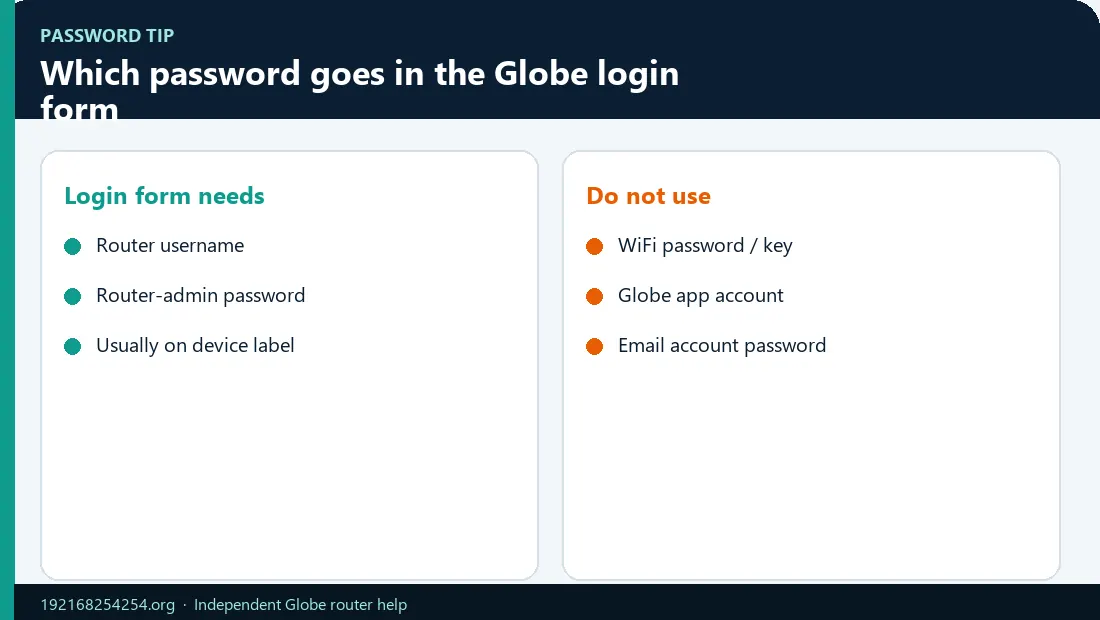
| Information on or near the label | Purpose |
|---|---|
| SSID / WiFi Name | Identifies the wireless network |
| WiFi Password / WLAN Key | Connects a device to WiFi |
| Modem IP / Web UI Address | Opens the local dashboard |
| Default Username / Login Username | Identifies the dashboard account |
| Admin Password / Login Password | Authenticates the dashboard account |
| Home Prepaid WiFi Number | Identifies the service in registration/account workflows |
A label can contain several passwords and identifiers. Match the field to the task instead of assuming that the longest or most visible code is the dashboard password.
If somebody changed the dashboard password, the printed value may no longer work. Check with the owner or installer. Factory reset is a last resort because it may erase WiFi and ISP-related settings.
What You Can Do After Globe Admin Login
Available controls depend on your model and login role. Common tasks include:
- change the Globe WiFi password or network name;
- view 2.4 GHz and 5 GHz WiFi settings;
- see and block devices connected to Globe WiFi;
- change the local admin password;
- create or manage a guest network where supported;
- review signal, WAN, LAN, DHCP, or system status;
- restart the modem without erasing its configuration.
A limited user account may allow WiFi changes but hide advanced network settings. This does not automatically mean the login failed. The model, firmware, and Globe's provisioning policy determine what each role can see.
Globe Login Page Not Opening
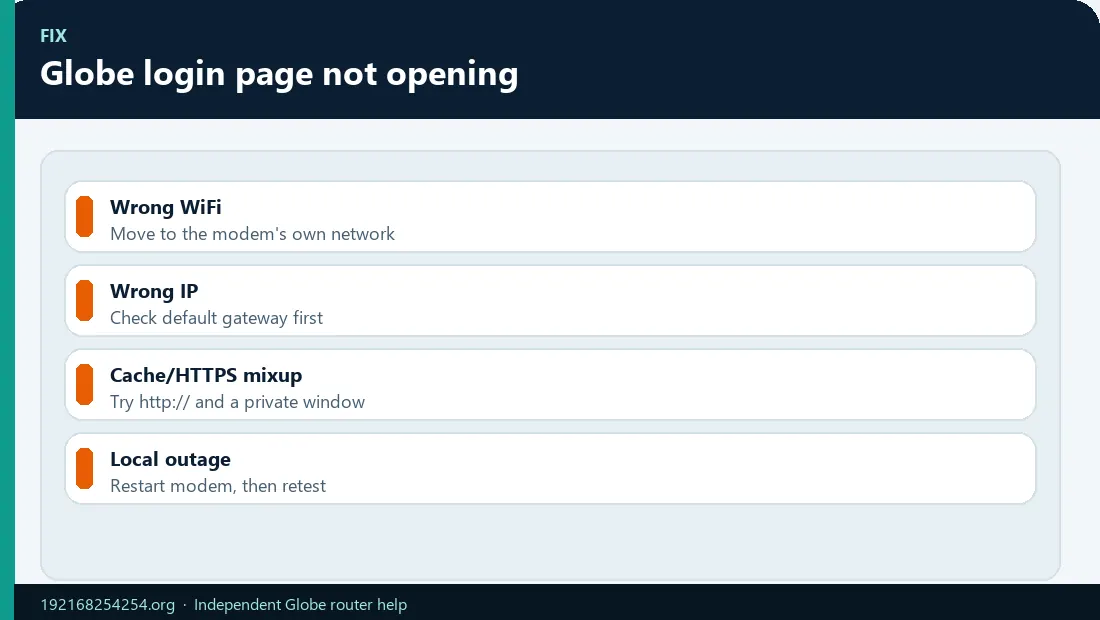
Use the symptom to choose the next action.
| What you see | First useful check |
|---|---|
| Google results | Paste http://192.168.254.254/ into the browser address bar |
| Page times out | Confirm the connected WiFi and active default gateway |
| Connection refused | Try the documented HTTP address and verify the model's management path |
| Privacy or certificate warning | Verify the exact private IP and your own network; do not enter credentials on a public lookalike domain |
| Login rejected | Distinguish the admin password from the WiFi password; check the label and model |
| Dashboard opens but setting is missing | The login role, firmware, or model may not expose that setting |
| Internet works but dashboard fails | Check guest isolation, mesh/secondary-router topology, VPN, mobile-data switching, and the actual gateway |
| Dashboard works but internet fails | The local LAN is working; check signal, PON/LOS, WAN status, load/account state, cables, or an outage |
Use the complete 192.168.254.254 troubleshooting guide for error-specific steps. Restart before considering a factory reset.
Globe Router Login Safety
These steps are written for an independent guide. See how we verify login guidance independently if you need our research and privacy boundaries.
- Use the local address shown by your device or official Globe instructions.
- Do not submit router credentials to an online “login checker.”
- Change a confirmed default admin password after gaining access.
- Use WPA3 Personal where supported, or WPA2 Personal/AES for compatibility.
- Keep remote management off unless you specifically need and understand it.
- Obtain firmware only through Globe or the manufacturer's approved process.
- Do not use leaked “superadmin” credentials from a forum or video.
The FTC's home WiFi guidance recommends changing default administrative settings, using WPA3 or WPA2, updating router software, and disabling unnecessary remote management.
Frequently Asked Questions
What is the Globe At Home login IP?
Globe officially documents 192.168.254.254 for supported Home Prepaid WiFi modems, but it is not universal. Check the modem label and the default gateway on your connected device.
How do I log in to Globe At Home Prepaid WiFi?
Connect to the modem's WiFi, open the IP or hostname printed on the label or provided by Globe, and enter the dashboard username and password from the modem label.
Is the Globe admin password admin/admin?
Do not assume so. Globe devices come from different manufacturers and firmware families, and many have label-specific credentials. Use admin/admin only if the exact device label or verified instructions for your model confirm it.
Is my Globe WiFi password the router login password?
Not necessarily. The WiFi password joins the wireless network. The router-admin password opens the configuration dashboard.
Can I open the Globe dashboard without internet?
Yes, local access can work while the internet is down. Your phone or computer must still have a working local WiFi or LAN connection to the modem.
Why does the login work but I cannot find Advanced settings?
Your account may be a limited user role, or Globe-managed firmware may hide those controls. Use the exact model guide or Globe support rather than unverified credentials.
Can I log in while away from home?
Normally, no. The private address is reachable only from the local network. Enabling remote administration can increase risk and is unnecessary for most households.
Should I reset the Globe modem if the login fails?
Not first. Verify the address, credential type, label, model, capitalization, and changed-password history. Read the safe Globe router reset guide before using the reset button.
Sources and Scope
- Globe: Setup Your Prepaid WiFi
- Globe: Home Prepaid WiFi dashboard instructions
- Globe: Home Prepaid WiFi alternate dashboard workflow
- Globe: Home Prepaid WiFi setup and label information
- Globe: Broadband help
- Microsoft:
ipconfig - FTC: Secure your home WiFi network
This independent guide is not a Globe login page and is not affiliated with Globe Telecom. Model labels and current official instructions take priority over generic online credential lists.
Last reviewed: 2 October 2026