
How to Change Your Globe WiFi Password and Name
For a supported Globe Home Prepaid WiFi modem, connect to its WiFi, open http://192.168.254.254/, log in with the dashboard details on the modem label, then go to Advanced → WiFi → WiFi Security Settings → Edit. Enter the new WiFi name or password and select Save.
Globe also documents an older interface path—WLAN → WLAN Basic Settings → Apply—for some equipment. Follow the labels you actually see, because the menus differ by model and firmware.
What You Need
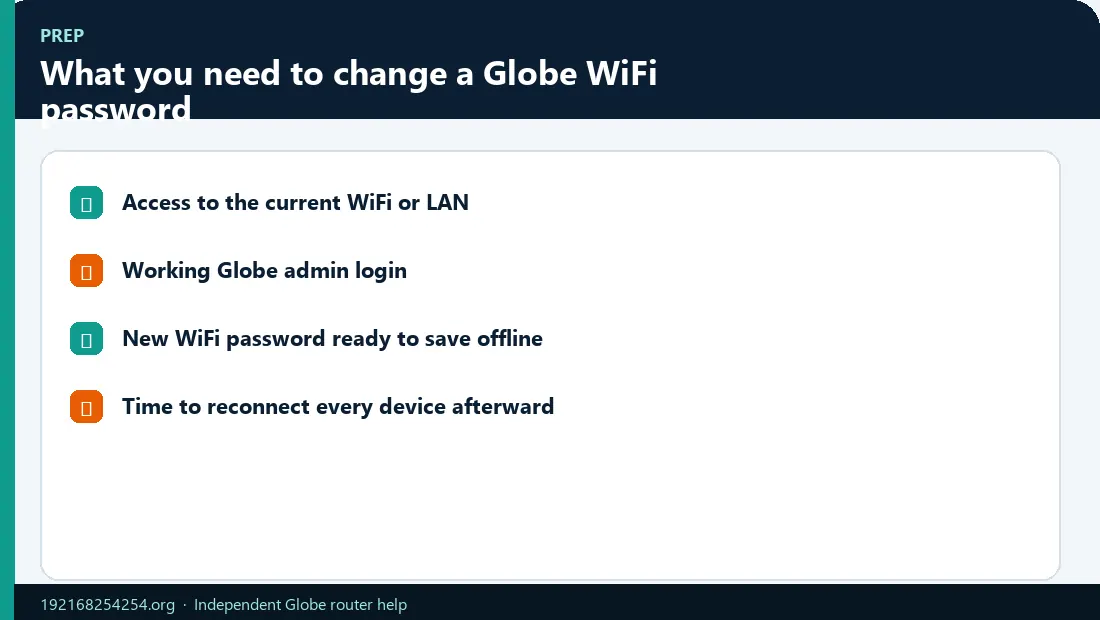
You need working dashboard access first. Follow the Globe router login steps for the dashboard before editing WiFi Security or WLAN settings.
- A phone or computer connected to the Globe modem by WiFi or LAN
- The modem's dashboard address
- The router-admin username and password, usually found on the label for supported Home Prepaid WiFi equipment
- The new WiFi password and, if desired, a new network name
- Access to the modem in case you must read the label or connect by Ethernet
The WiFi password is not automatically the same as the router-admin password. Changing one does not necessarily change the other.
Change the Globe WiFi Password Step by Step
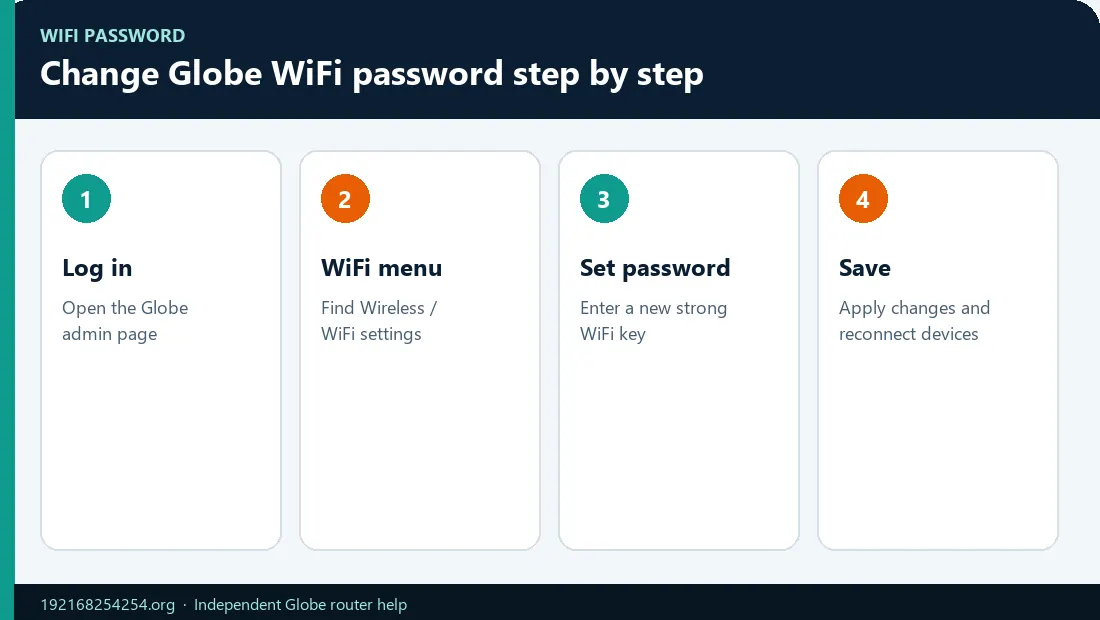
1. Connect to the Globe modem
Join the current WiFi network using its existing password. If you have a laptop and Ethernet cable, a LAN connection is useful because a WiFi password change will not disconnect the wired session.
Turn off mobile data switching and VPN temporarily if the local dashboard will not open.
2. Open the router dashboard
Enter http://192.168.254.254/ in the browser address bar. Use the number 1, not the letter l.
If the page does not open, check the Modem IP on the device label or find the active router IP. Some official Globe instructions use http://globebroadband.net for particular Home Prepaid WiFi equipment.
3. Sign in with the dashboard credentials
Use the Default Username, Login Password, or Admin Password associated with the modem dashboard. Do not enter your GlobeOne password or assume the WLAN key belongs in the admin form.
If the credentials are missing or rejected, use the 192.168.254.254 username and password guide.
4. Open the wireless security settings
Use the interface path that matches your screen:
| Interface wording | Likely path |
|---|---|
| Globe's current supported setup flow | Advanced → WiFi → WiFi Security Settings → Edit |
| Globe's other documented Home Prepaid WiFi flow | WLAN → WLAN Basic Settings |
| Common manufacturer wording | WiFi/WLAN/Wireless → Security/Basic Settings |
Look for a field named Password, WLAN Key, Security Key, Pre-Shared Key, WPA Pre-Shared Key, or Passphrase. Do not edit WAN, VLAN, PON, VoIP, or other ISP settings.
5. Enter a strong new WiFi password
Use a unique password that is long enough to resist guessing. A practical choice is at least 14 characters using unrelated words, numbers, and symbols that the router accepts. Avoid:
- your name, address, birthday, or phone number;
- the SSID or Globe account number;
password,12345678, or another common sequence;- a password already used for email, banking, GlobeOne, or social media.
If the dashboard shows a security mode, prefer WPA3 Personal when all important devices support it. Otherwise use WPA2/WPA3 transitional or WPA2 Personal with AES. Do not downgrade to WEP or old WPA merely to keep an obsolete device connected. The FTC recommends WPA3 or WPA2 and treats WEP/WPA as outdated.
6. Save or apply the change
Check the new password carefully, select Save or Apply, and wait for the WiFi service to restart. The current wireless session will usually drop immediately.
7. Reconnect every device
Find the Globe WiFi network and join it with the new password. Update saved credentials on phones, computers, televisions, cameras, printers, consoles, and smart devices.
If a device repeatedly submits the old password, choose Forget Network and join again. Google documents the Forget option in Android WiFi settings; other operating systems provide an equivalent saved-network control.
Change the Globe WiFi Name or SSID
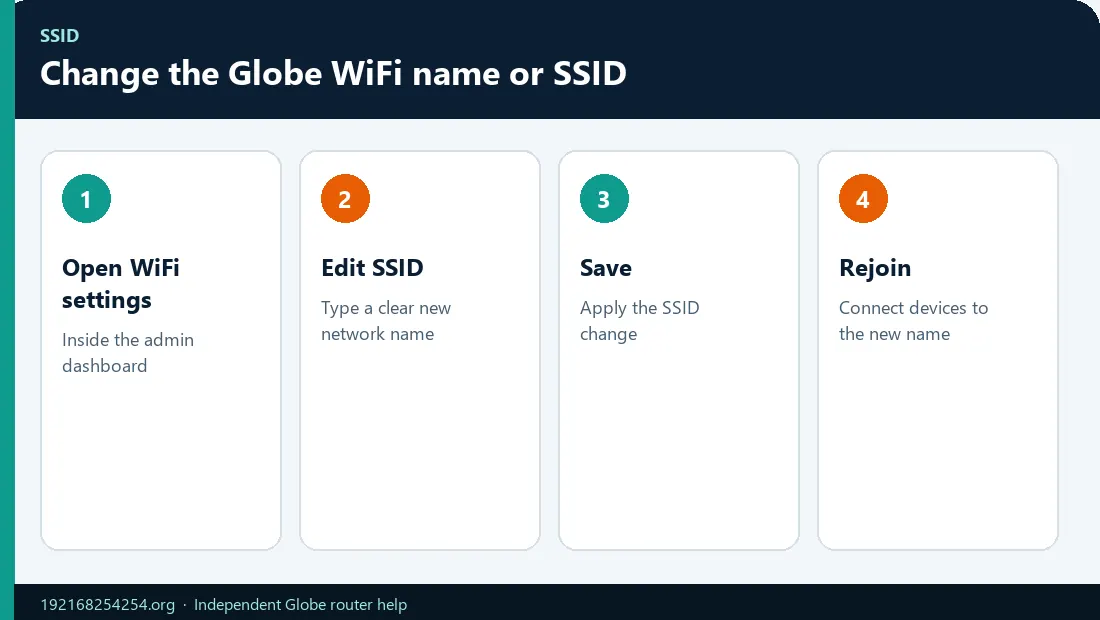
The SSID is the network name shown in WiFi lists. It may be labelled SSID, WiFi Name, WLAN Name, or Network Name.
- Log in to the modem dashboard.
- Open WiFi, WLAN, or Wireless settings.
- Find the SSID/network-name field.
- Enter a clear, non-sensitive name.
- Keep SSID broadcast enabled unless you have a specific reason to hide it.
- Save the change and join the newly named network.
Avoid including a full name, unit number, phone number, or address in the SSID. Hiding the SSID is not a substitute for strong WPA2/WPA3 encryption and can make reconnection harder.
Changing Settings on a Phone
You do not need a computer if the router dashboard works correctly on mobile:
- Connect the phone to the Globe WiFi.
- Turn off mobile data temporarily so the browser stays on the local network.
- Open Chrome or Safari and enter the router address in the URL bar.
- Sign in using the dashboard credentials.
- Open the WiFi/WLAN security menu.
- Change the key or SSID and save.
- Open the phone's WiFi settings and reconnect using the new details.
If the dashboard is too wide, rotate the phone or use “desktop site” only if necessary. Do not download an unofficial “router admin” app that asks for your credentials.
2.4 GHz, 5 GHz, and Unified WiFi
Your modem may broadcast two bands:
- 2.4 GHz generally travels farther and supports older devices.
- 5 GHz can provide higher throughput at shorter range with compatible devices.
The dashboard may use one SSID and password for both bands through Band Steering, Smart Connect, or Unified WiFi. Another model may show separate settings such as HomeWiFi and HomeWiFi_5G.
Before saving, check whether you are editing:
- only the 2.4 GHz network;
- only the 5 GHz network;
- both bands through a unified setting;
- a guest network rather than the primary network.
If only one network changed, log in again through the working band and update the other intentionally. Do not create two identically named networks with different passwords; devices can connect unpredictably and make troubleshooting difficult.
What Happens Immediately After You Click Save?
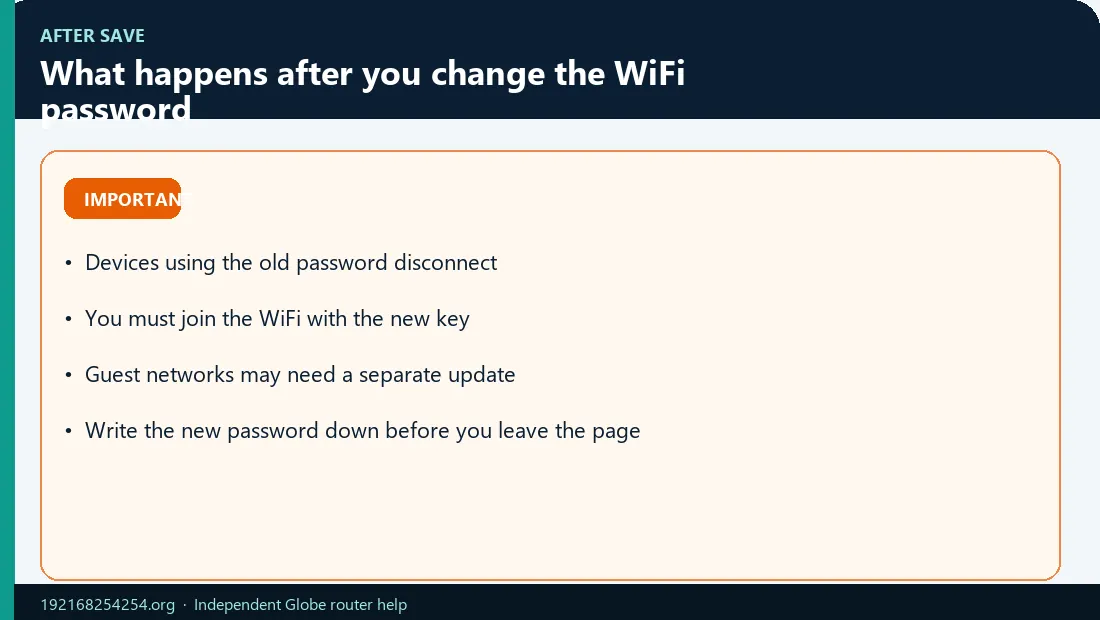
| Result | Meaning | What to do |
|---|---|---|
| The dashboard closes and WiFi disconnects | Expected after a password or SSID change | Join the new SSID with the new password |
| The old network name disappears | Expected after an SSID change | Look for the new name |
| Only one of two network names changed | Only one band was edited | Update the other band if desired |
| No network appears | WiFi may be restarting, disabled, or hidden | Wait, check both bands, then use LAN/model-specific recovery |
| New password is rejected | Typo, wrong band, unsaved change, or cached credential | Forget the network and enter the key again carefully |
| Internet is absent but WiFi connects | Local wireless works; WAN/service may be separate | Check signal/PON/LOS, account/load, outage, and dashboard WAN status |
Do not use the reset pin simply because the old SSID vanished. That is the normal consequence of renaming a network.
If You Are Locked Out After the Change
Use this recovery order:
- Confirm the exact new SSID and password you recorded.
- Check uppercase/lowercase characters and similar-looking
0/Oor1/lcharacters. - Forget the saved WiFi profile and reconnect.
- Check the other band if 2.4 GHz and 5 GHz are separate.
- Wait for the router to finish applying changes.
- Connect a computer by LAN and reopen the dashboard.
- Restart the router without pressing Reset.
- Use model-specific support if WiFi was disabled or the SSID was hidden.
- Consider a factory reset only after reading the Globe router reset and recovery guide.
A restart normally retains settings. A factory reset can erase the WiFi configuration and may affect ISP provisioning on some fiber equipment.
Change the Admin Password Too
The admin password protects the router settings; the WiFi password protects access to the wireless network. If the dashboard still uses a confirmed default admin password, change it under Account, System, Administration, or a similar menu.
Use a different password from the WiFi key. Store it in a password manager or another secure location. Do not change the admin username or account role unless the exact model documentation explains the effect.
If You Suspect Someone Is Using Your Globe WiFi
Changing the WiFi password is often more reliable than deleting one name from a client list because:
- device names can be vague or wrong;
- old DHCP leases can remain visible after a device disconnects;
- phones can use private or randomized MAC addresses;
- an unwanted user may reconnect if they still know the old password.
Use a new, unique key, reconnect only approved devices, change the router-admin password, use WPA2/WPA3, and disable WPS or remote management if present and unnecessary. Then review the Globe connected-devices guide to identify anything still unfamiliar.
Common Problems
192.168.254.254 does not open
Confirm the active default gateway, connect to the primary Globe network, turn off VPN/mobile data for the test, and try the explicit HTTP address. Follow the 192.168.254.254 not-working guide if the page times out or refuses the connection.
The dashboard password is incorrect
You may be entering the WiFi key instead of the admin password, using details for another model, or using an old label value after somebody changed the login. Check the label and credential decision guide.
There is no WiFi Settings or WLAN menu
The menu may be under Advanced, Network, Wireless, or Basic Settings. A limited login role or ISP-managed firmware can also hide the control. Do not use leaked superadmin credentials; use the exact Globe model guide or official support.
The Save button does nothing
Make sure the new key meets the router's displayed requirements, no required confirmation field is blank, and you are editing the active SSID. Try one intentional change at a time. If the interface is stale, sign out and reopen it rather than repeatedly tapping Save.
A smart device will not reconnect
Some older IoT devices support only 2.4 GHz or WPA2. Confirm the correct band and use WPA2/WPA3 transitional mode only where the router and household device requirements justify it. Do not weaken the entire network to WEP.
Frequently Asked Questions
What is the official Globe path for changing the WiFi password?
For supported Home Prepaid WiFi equipment, Globe documents 192.168.254.254, then Advanced → WiFi → WiFi Security Settings → Edit → Save. Another Globe page documents WLAN → WLAN Basic Settings → Apply. Use the path visible on your model.
Can I change the Globe WiFi password using my phone?
Yes. Connect the phone to the modem's WiFi, open the local dashboard in a browser, sign in, edit the WiFi security key, save, and reconnect with the new password.
What is the Globe At Home default WiFi password?
The default WLAN key is normally device-specific and printed on the modem label. Do not use a universal password from an unrelated router.
Why did all devices disconnect?
The router restarted its wireless service after the key or SSID changed. Every device must authenticate again using the new details.
Does changing the WiFi password change the admin password?
Usually not. They protect different functions and should be managed separately.
Should 2.4 GHz and 5 GHz have the same password?
They can share one password when band steering or unified WiFi is enabled. Separate networks can also use separate passwords, but document them clearly to avoid connecting to the wrong band.
How often should I change the WiFi password?
Change it when it is still a weak/default value, when somebody who should no longer have access knows it, after unauthorized access, or after accidental disclosure. A strong unique password does not need arbitrary frequent changes if it remains private.
Will a factory reset recover a forgotten WiFi password?
It can restore factory values, but it also erases settings and can affect ISP configuration. Check the label, connected devices, saved passwords, LAN access, and model-specific recovery before resetting.
Sources and Scope
- Globe: Setup Your Prepaid WiFi
- Globe: Home Prepaid WiFi dashboard instructions
- Globe: Alternate Home Prepaid WiFi dashboard workflow
- Globe: Home Prepaid WiFi setup and label information
- FTC: Secure your home WiFi network
- Apple: Recommended settings for WiFi routers
- Android Help: Connect to and forget WiFi networks
This independent guide covers common Globe workflows. The interface on your exact model and firmware is authoritative.
Last reviewed: 2 October 2026