
192.168.254.254 Username and Password
There is no single username and password for every router at `192.168.254.254`. For supported Globe Home Prepaid WiFi equipment, the safest answer is to use the default username and dashboard password printed on the back or bottom of your own modem. Globe's current instructions direct users to the device label rather than publishing one universal credential pair.
If the label value has been changed, identify the router model and follow the changed-password recovery steps below. Do not immediately factory-reset a Globe fiber modem or try leaked “superadmin” credentials.
First Identify Which “Password” You Need
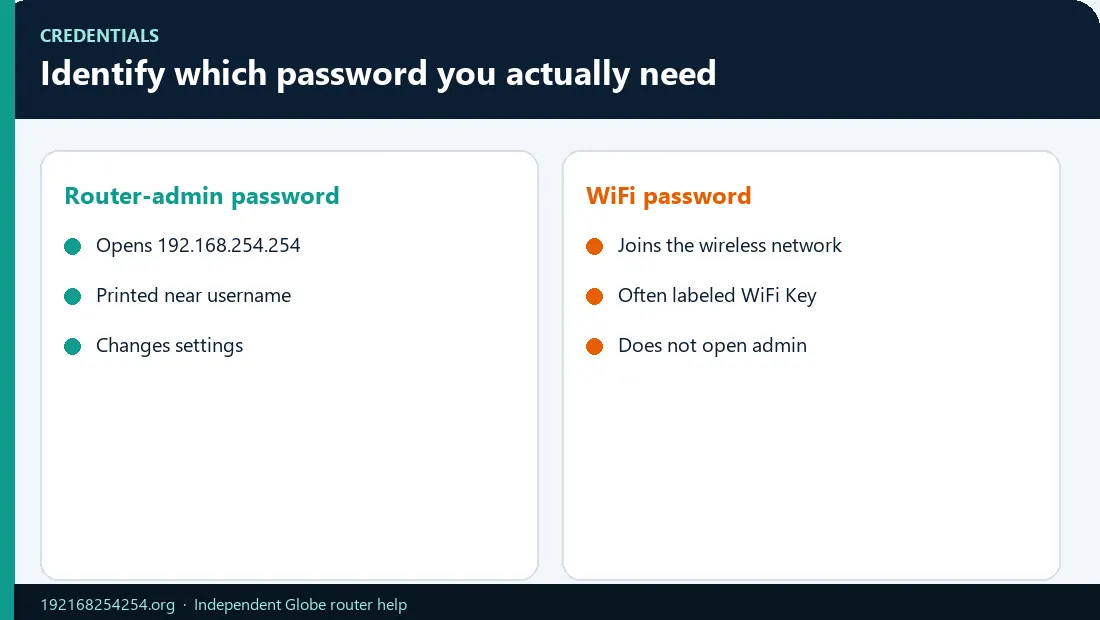
Several unrelated credentials are commonly called the Globe password.
| Credential | What it unlocks | Evidence to use |
|---|---|---|
| WiFi password / WLAN key | Lets a phone, computer, TV, or other device join WiFi | Device label or the currently configured WiFi settings |
| Router-admin username and password | Opens the local configuration dashboard | Device label, verified instructions for the exact model, or a value changed by the owner |
| GlobeOne credentials | Opens the GlobeOne account/app | GlobeOne account recovery—not the router login form |
| Home Prepaid WiFi number / OTP | Registers or verifies the prepaid service | Label, SMS, router inbox, or current Globe workflow |
| PPPoE or ISP provisioning credentials | Authenticates some WAN services | ISP-managed configuration; do not replace with router-login details |
If you can join WiFi but the same password fails on the dashboard, you are probably using the WLAN key where the router expects the admin password.
Where to Find the Correct Login Details
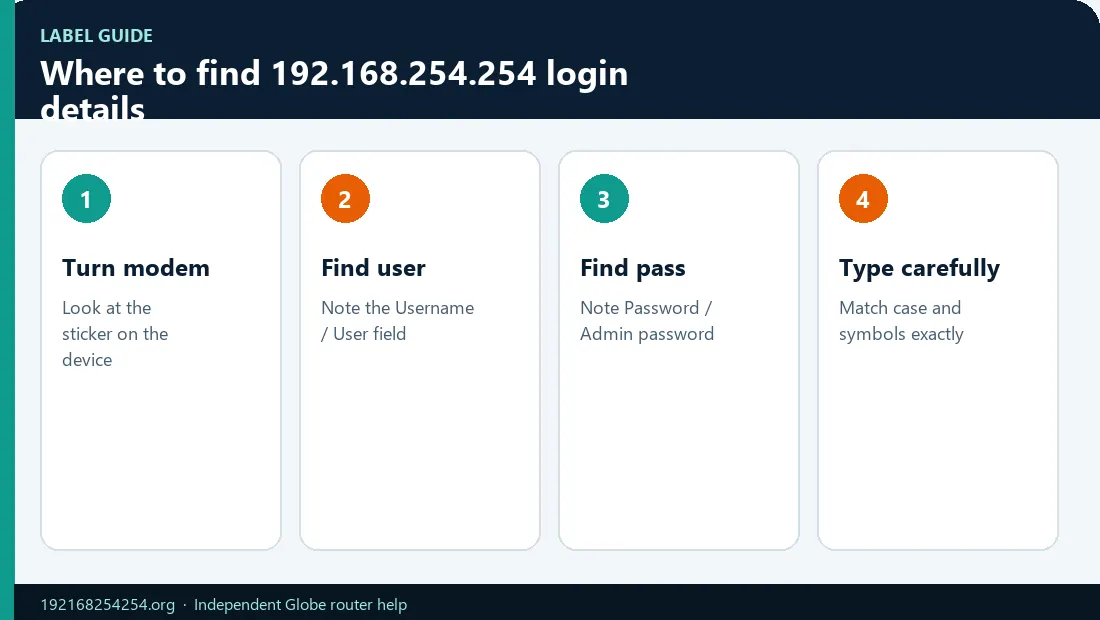
Before you try a password from the label, confirm the active default gateway first so you are not authenticating against the wrong device.
Use this evidence order:
- The label on the exact device. Look for Modem IP, Default Username, Login Password, Web UI Password, Admin Password, SSID, and WLAN Key.
- A card or leaflet supplied with the device. Match its model and hardware revision.
- Current Globe instructions for that service. Confirm whether the workflow is browser-based, app-based, or screen-based.
- The official manufacturer manual for the exact model and hardware version. ISP firmware can still change defaults, so a manufacturer default is secondary to the Globe/device label.
- The person or installer who changed the login. A customized value supersedes the factory value.
Globe's Home Prepaid WiFi setup article says the modem sticker can contain the Home Prepaid WiFi number, SSID, password, modem IP, default username, and WLAN key. Its dashboard instructions tell users to enter the default username and password found on the back of the modem.
Label Decoder: Do Not Mix These Fields
| Label field | Enter it where? |
|---|---|
| SSID / Network Name | Select this name in the phone or computer's WiFi list |
| WiFi Password / WLAN Key / Security Key | Enter when joining the SSID |
| Modem IP / IP Address / Web UI | Enter in the browser address bar |
| Default Username / User Name | Enter in the dashboard username field |
| Login Password / Admin Password | Enter in the dashboard password field |
| IMEI / Serial Number / MAC | Device identifiers; do not use as a password unless the exact official instructions explicitly derive one from them |
| Home Prepaid WiFi Number | GlobeOne/SIM/account workflows, not normally router authentication |
Take a private photo of the label for your own records, but do not publish it. A clear label image can reveal the default WiFi key, admin password, serial number, and other identifiers.
Are `admin/admin` or `user/@l03e1t3` the Globe Default?
These combinations appear frequently on router-login and Philippine technology pages, but neither is a universal answer for all Globe devices.
- `admin/admin` is a common factory pattern across many router brands. Use it only when your device label or verified model documentation confirms it.
- `user/@l03e1t3` is associated in older third-party guides with certain Globe/Huawei interfaces. It should not be presented as the current password for every Globe modem.
- Long “full admin” or “superadmin” passwords posted on forums and videos may be outdated, unauthorized for your firmware, or capable of exposing settings that can disconnect the service. This guide does not reproduce them.
The central rule is simple: model, firmware, service, login role, and previous changes determine the valid credential. A list that assigns one password to “Globe” or to 192.168.254.254 removes those necessary conditions.
Login Decision Tree
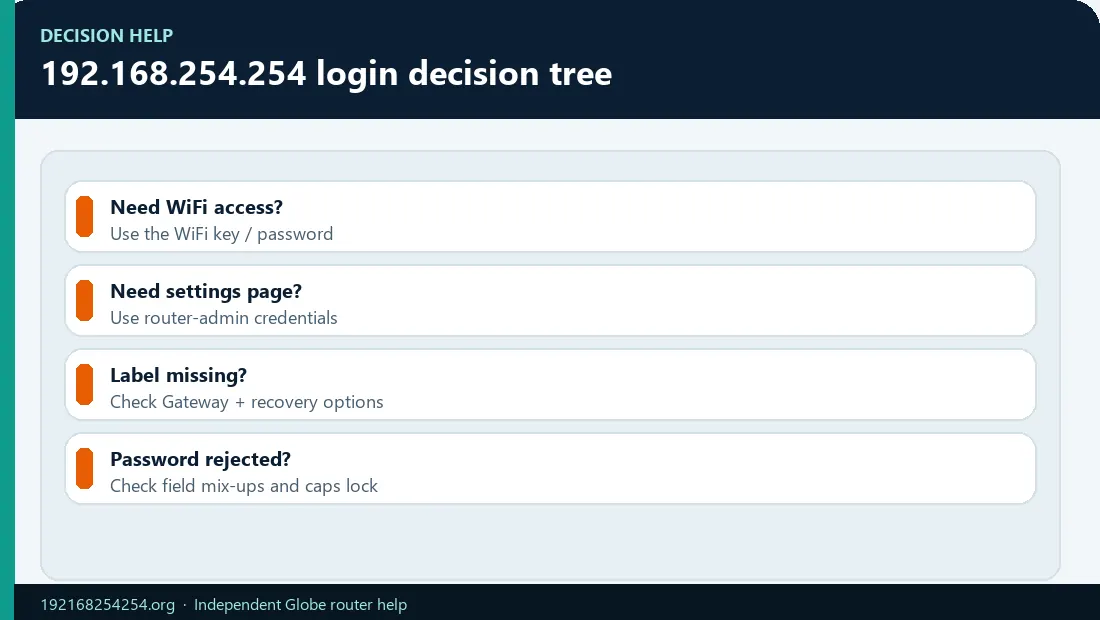
The label shows a dashboard username and password
Connect to that modem, open the label's IP/hostname, and enter those details exactly. Check capitalization and characters such as 0/O, 1/l, and 5/S.
The label shows only an SSID and WiFi key
Identify the model number and service family. Search current official Globe or manufacturer documentation for that exact model. Do not assume the WiFi key is the dashboard password.
The printed credentials worked before but fail now
The owner or installer may have changed the admin password. Check a password manager, installation record, or the person who configured the router. If too many attempts produce a lockout message, stop and wait rather than continuing to guess.
The login works but the required setting is absent
You may have a limited user role. Different router accounts can expose different menus, and ISP-managed firmware can hide or lock advanced fields. This is not solved safely by copying an unknown superadmin credential. Use the Globe router model guide or ask Globe about the specific setting.
You cannot reach the login form
This is an address or network-path problem, not yet a password problem. Confirm the active default gateway and follow the 192.168.254.254 not-working guide.
You forgot a password you personally changed
Try stored credentials and non-destructive recovery first. A factory reset may restore label defaults, but it can also erase WiFi and ISP-related configuration. Review reset consequences and recovery before pressing the reset button.
How to Log In Once You Have the Correct Credentials
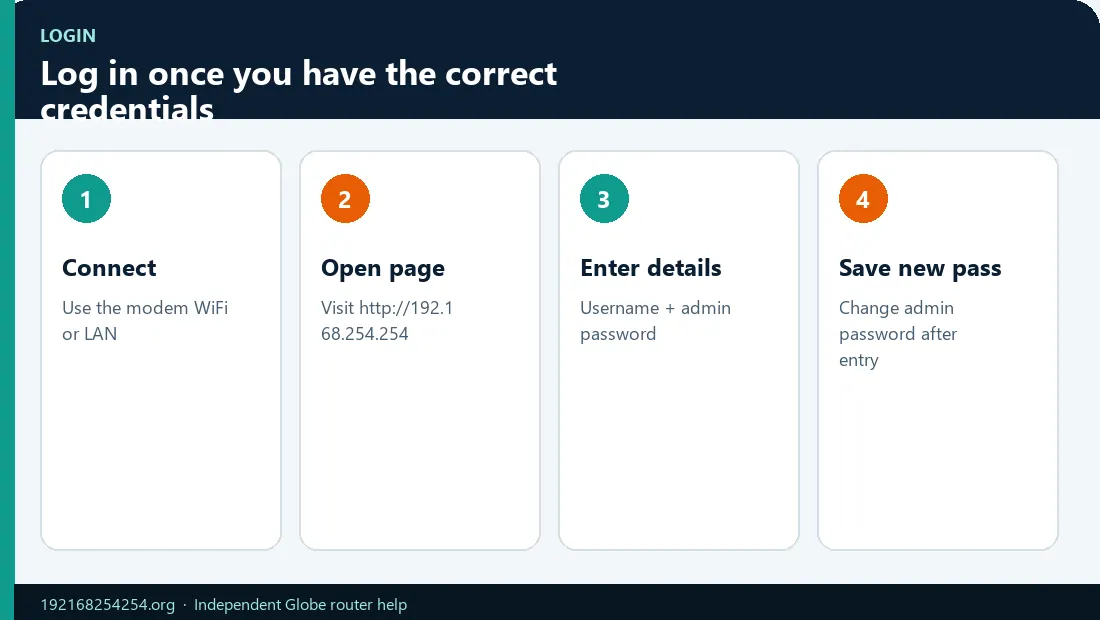
- Connect to the target router by its primary WiFi or a LAN cable.
- Open a browser and enter
http://192.168.254.254/in the address bar if this is the gateway shown by the label/device. - Enter the router-admin username and password exactly.
- Confirm that the dashboard branding and model match the physical device.
- Change a confirmed default admin password to a unique value.
If your default gateway differs, use that address rather than forcing 192.168.254.254. The Globe login guide explains the complete access workflow.
Why a Correct Password Can Still Be Rejected
| Cause | How to test it safely |
|---|---|
| WiFi key entered in the admin form | Compare the label field names |
| Wrong router or secondary mesh page | Check login branding and active gateway |
| Capitalization or character error | Retype manually and check the label closely |
| Password changed after installation | Ask the owner/installer or check saved records |
| Wrong model's default | Match the exact model and hardware revision |
| Limited/disabled local management | Review model/ISP support information |
| Temporary lockout after repeated guesses | Stop attempts and follow the displayed wait period |
| Browser autofill inserted an old password | Clear only that saved login entry or type in a private window |
| Factory label no longer applies after replacement/refurbishment | Confirm the current installed device and provisioning history |
Do not clear all browser data, disable security software, or reset the router until the symptom points to those actions. Password rejection after the form loads proves the local page is reachable; it does not mean the internet connection or IP address is wrong.
Change the Router-Admin Password
After a successful login, look under Account, Administration, System, Maintenance, or User Management. Exact names vary.
Use a unique admin password that differs from:
- the WiFi password;
- GlobeOne credentials;
- email and financial-account passwords;
- the previous default;
- personal information visible to visitors.
Store the value securely. Changing the dashboard password should not rename the SSID or change the WiFi key, although some setup wizards may present both tasks together.
For the wireless key, follow how to change your Globe WiFi password and name.
Forgotten Password Recovery Without an Immediate Reset
Use this order:
- Identify whether you forgot the WiFi key or the admin password.
- Read every relevant field on the device label.
- Check whether another authorized device has the WiFi password saved.
- Try a LAN connection if WiFi access is the only problem.
- Confirm the active gateway and exact model.
- Check authorized installation records or a password manager.
- Restart the device; do not press the reset pinhole.
- Contact Globe or the manufacturer with the model and firmware details.
- Factory-reset only with model-specific instructions and a plan to restore service.
On ISP-managed fiber equipment, a reset can affect WAN, VLAN, or other provisioning. Do not experiment with random values if the internet fails afterward.
Security and Privacy
After a successful login, you can also see and block unfamiliar devices on Globe WiFi if you suspect the old password was shared.
- Never post a modem-label photo publicly.
- Do not send a password, OTP, serial number, or configuration backup to an unofficial help page.
- Do not reuse router credentials for other accounts.
- Keep remote management disabled unless it has a documented need.
- Use Globe- or manufacturer-approved firmware only.
- Treat a private IP as a routing scope, not a guarantee that every prompt is safe.
The FTC's router-security guidance recommends changing default administrative credentials, using WPA3 or WPA2, keeping router software current, and turning off unnecessary remote management.
Frequently Asked Questions
What is the username and password for 192.168.254.254?
It depends on the device using that address. Check the router label and exact model. The IP address alone cannot identify a valid credential.
What is the Globe admin password?
There is no universal current Globe admin password. Supported Home Prepaid WiFi devices provide dashboard details on the modem label. Other Globe equipment depends on model, firmware, and service.
Is `@l03e1t3` the Globe password?
Older third-party guides associate it with certain Globe/Huawei user accounts, but it is not a safe universal answer. Use it only when verified for the exact equipment and current firmware.
Is the username `admin`?
It may be on some models, but other devices use a different username or a unique login. Read the label or verified model documentation.
Why can I connect to WiFi but not log in?
WiFi access and dashboard administration use different credentials. You may be entering the WLAN key in the admin form.
I forgot my Globe At Home username and password. What should I do?
Read the modem label, identify the exact model, check whether the values were changed, and contact Globe if needed. Factory reset is the final step, not the first.
Does resetting restore the default username and password?
It often restores factory values, but the exact result is model-specific and may erase settings required for internet service. Read the reset guide first.
Can a website discover my router password from the IP?
No. 192.168.254.254 is reused on many private networks and does not reveal the device's password. Avoid any site claiming it can inspect your private credentials remotely.
Why are some settings missing after I log in?
Your login role, ISP firmware, or model capability may restrict those controls. A valid login does not guarantee full administrative privileges.
Sources and Verification Policy
- Globe: Home Prepaid WiFi setup and label contents
- Globe: Dashboard login details are on the modem
- Globe: Setup Your Prepaid WiFi
- FTC: Secure your home WiFi network
Credential facts should be published only when the exact model, service, firmware context, source, and review date are known. Third-party defaults are discussed here to answer the query, not endorsed as universal Globe credentials.
Last reviewed: 2 October 2026