
192.168.254.254 Not Working? Fix the Exact Login Problem
If 192.168.254.254 is not opening, first connect to the target router's primary WiFi or LAN, turn off mobile data and VPN for the test, then enter http://192.168.254.254/ directly in the browser address bar. If it still fails, check the device's active default gateway. Use the address your device reports instead of assuming every Globe router uses 192.168.254.254.
Do not factory-reset the router yet. A timeout, refused connection, privacy warning, rejected password, and missing setting have different causes.
One-Minute Check
When the page finally loads, continue with the Globe router login guide after the page loads using the label credentials for that exact device.
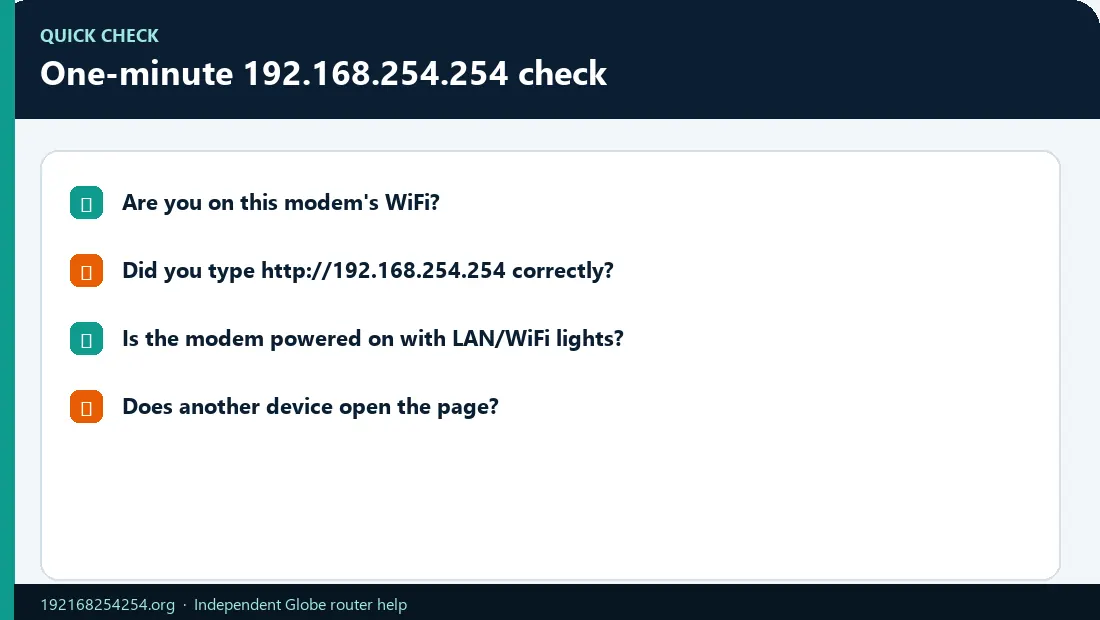
Work through these in order:
- Copy the exact URL:
http://192.168.254.254/. - Confirm there are four numeric groups—no letter
l, spaces,www, or extra dots. - Connect to the correct router by WiFi or a LAN port.
- Turn off mobile data, VPN, proxy, and automatic WiFi-to-cellular switching temporarily.
- Check the active default gateway on the connected device.
- If the gateway differs, open that address.
- Restart the router normally and test one other connected device.
If the page opens, the reachability problem is solved. A rejected login is a separate credential issue.
First Separate the Admin Page from the Internet
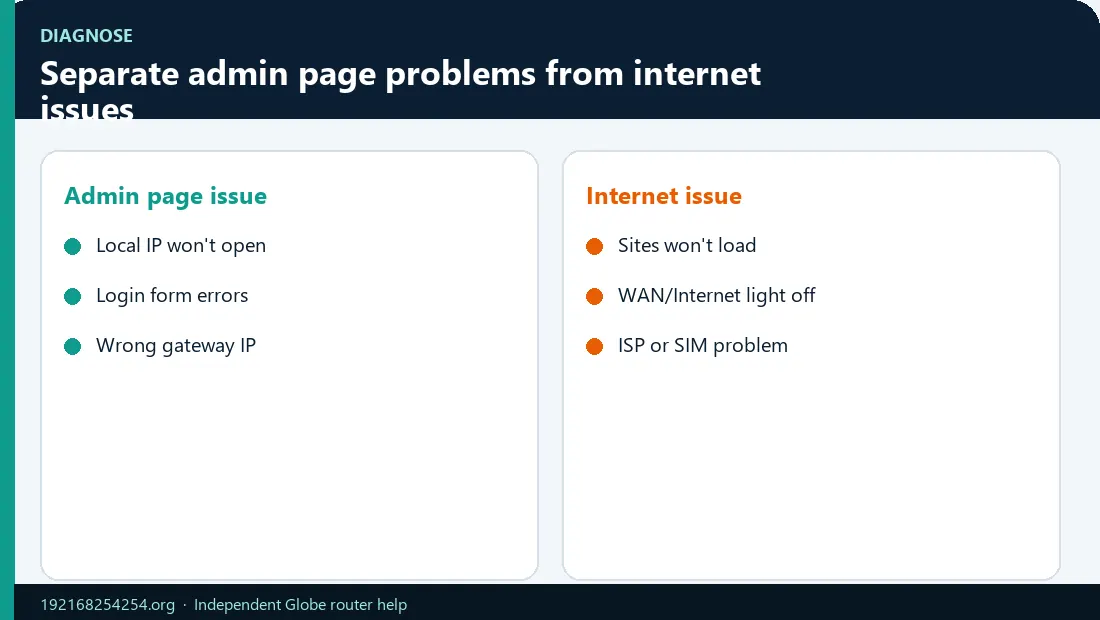
| Router admin page | Internet | Likely direction |
|---|---|---|
| Works | Works | Continue with login or settings |
| Works | Fails | The local LAN works; investigate WAN, signal, PON/LOS, account/load, outage, cables, or provisioning |
| Fails | Works | Confirm the gateway; check guest isolation, mesh/secondary router, browser policy, or disabled local management |
| Fails | Fails | Check router power, WiFi/LAN association, DHCP, cables, and service indicators |
You do not need public internet access merely to open a local router page. Likewise, internet access does not prove that 192.168.254.254 is the active router address.
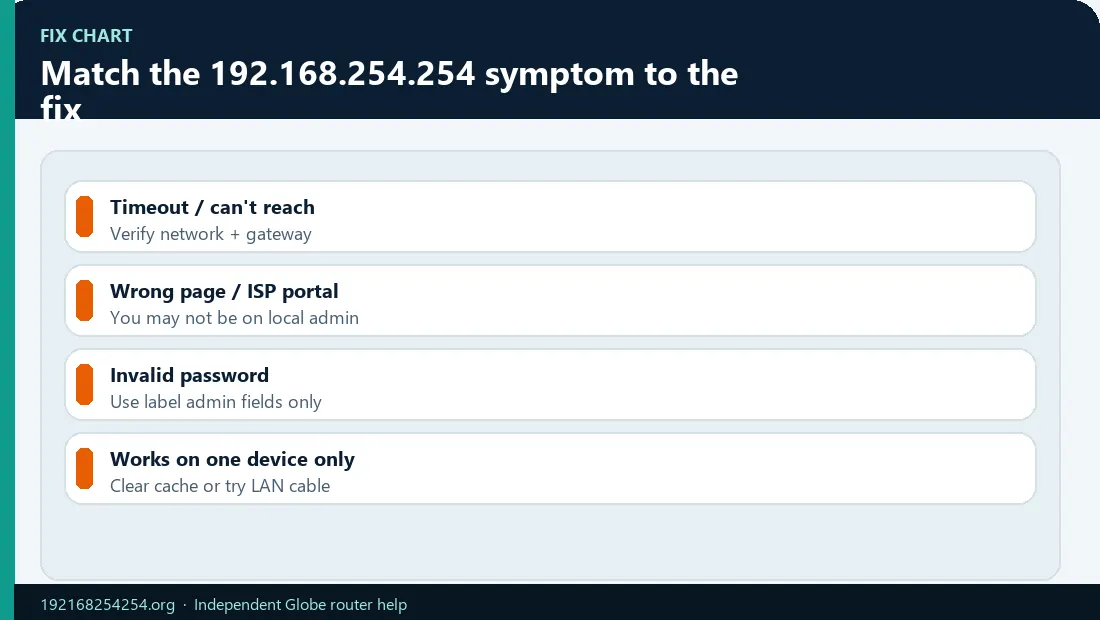
Match the Symptom to the Fix
Google search results appear
The browser treated the IP as a search query. Tap the full address bar, delete its contents, paste http://192.168.254.254/, and press Go or Enter.
Invalid forms include 192.168 l 254.254, 192.168.l.254.254, 192.168 254.254, www.192.168.254.254, and https //192.168.254.254.
“This site can't be reached” or the request times out
A timeout means the browser did not receive a timely response. Check:
- the device is connected to the intended router, not another SSID;
- the router is powered and finished booting;
- the active default gateway is actually
192.168.254.254; - the connection is through a LAN port, not a WAN port;
- a VPN or proxy is not routing the request elsewhere;
- you are not on a guest network that blocks local devices;
- a mesh node or personal router is not placing you on another subnet.
If the client has a 169.254.x.x IPv4 address, it likely did not receive normal settings from DHCP. Microsoft notes that a 169.254 address can mean Windows could not obtain an IP from the router. Reconnect to WiFi, check the cable, and restart the router before trying the dashboard again.
`ERR_CONNECTION_REFUSED` or “Connection refused”
A refusal usually means the target responded at the network level but the web-management service or requested protocol/port did not accept the connection. It is different from a timeout.
- Confirm the correct gateway.
- Try the documented
http://URL. - Remove a manually added port such as
:443or:8080unless the model guide specifies it. - Test from another device on the same primary LAN.
- Check whether the ISP/model disables local web management or requires an app.
Do not assume that forcing HTTPS will help. Some local router interfaces do not provide a public-trust TLS certificate.
“Your connection is not private” or certificate warning
Confirm all three facts before proceeding with any router workflow:
- the address is the exact private IP or hostname documented for the device;
- you are connected to your own router's local network;
- the page has not redirected to an unfamiliar public domain.
For supported Globe Home Prepaid WiFi equipment, Globe documents http://192.168.254.254/. Use that HTTP address when it matches the official/device instructions. Never enter router credentials on a lookalike domain, ad, or remote “admin login” form.
The page is blank, loops, or loads only partly
First wait for the router to finish booting. Then:
- reopen the explicit address in a new tab;
- try another current browser or another connected device;
- disable a content blocker only for the verified local IP if it is visibly breaking the interface;
- check whether the browser requests permission to access devices on the local network;
- avoid an embedded in-app browser and open Chrome, Safari, Edge, or Firefox directly.
Clearing every cookie or disabling antivirus should not be the first step. A router page is local, and most access failures come from the wrong path, gateway, interface, or network.
The login form opens but the username/password fails
The IP and local route are working. Now check authentication:
- use the router-admin password, not the WiFi key or GlobeOne password;
- read the modem label and exact field names;
- check capitalization and similar characters;
- confirm the login page belongs to the model on the label;
- ask whether the owner or installer changed the password;
- stop repeated attempts if a temporary lockout appears.
Use the 192.168.254.254 username and password guide for safe recovery.
Login succeeds but settings are missing or read-only
This is not a reachability problem. The login role may have limited privileges, the hardware may not support the feature, or Globe-managed firmware may hide it. Use the Globe router model guide or official support instead of credentials posted as “superadmin.”
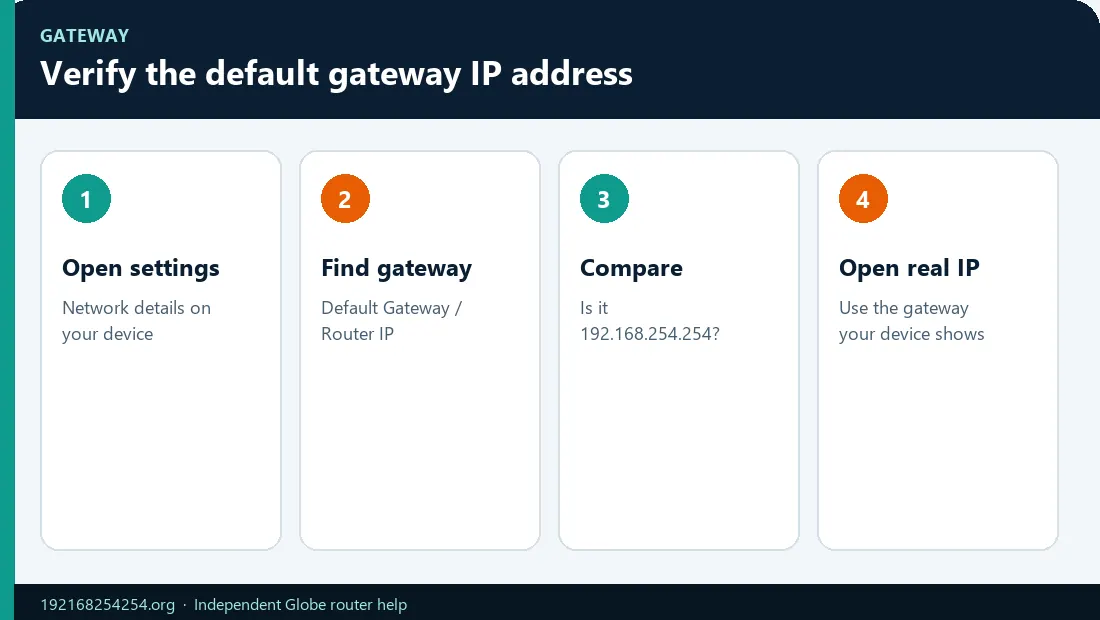
Verify the Default Gateway
Windows
- Open Command Prompt.
- Run
ipconfig. - Find the active Wireless LAN adapter Wi-Fi or Ethernet adapter.
- Read Default Gateway.
Microsoft's ipconfig documentation confirms that the command shows the IPv4 address, subnet mask, and default gateway for network adapters.
macOS
Open System Settings → Network/WiFi → Details → TCP/IP and read Router. You can also use route -n get default in Terminal and read the gateway for the active physical interface.
iPhone or iPad
Open Settings → WiFi, tap the information button beside the connected network, and read Router under the IPv4 section.
Android
Open the current WiFi network's details and look for Gateway or Router. Menu names differ between Samsung, Pixel, and other devices.
If the result is different from 192.168.254.254, open the reported gateway. See the complete router-IP guide for Linux, ChromeOS, multiple routers, and result interpretation.
Test the Local Path on Windows
After finding the gateway, run:
ping 192.168.254.254
Replace the address if your gateway is different.
- Replies arrive: the device is reachable at the IP layer; focus on HTTP/HTTPS, port, browser, or management-service restrictions.
- Request timed out: the router may block ping, so this does not prove it is offline. Recheck the gateway, WiFi/LAN connection, and browser.
- Destination host unreachable: the client may lack a usable route, subnet, or local connection.
Microsoft's Windows WiFi troubleshooting guidance uses the default-gateway ping as a local router test. Do not treat ping as a universal pass/fail because some routers disable ICMP replies.
Network Situations That Change the Answer
Guest WiFi or client isolation
A guest network can provide internet while blocking access to the main router or other LAN devices. Connect to the primary SSID printed/configured for the router.
Mesh WiFi
The default gateway may be the primary mesh node, and the system may be app-managed. Satellite nodes usually do not provide separate admin pages.
A personal router behind the Globe modem
Your device may report the personal router as its gateway. The Globe modem/ONT can be upstream on a different private subnet. Do not guess static IPs; identify the topology and consult the exact devices.
VPN or proxy
A VPN can add a virtual route or local-filter policy. Disconnect it briefly and read the gateway associated with the physical WiFi/Ethernet adapter.
Static IP settings
An incorrect manually assigned client IP, subnet mask, or gateway can make the router unreachable. Use DHCP/automatic addressing unless the network was intentionally designed with static settings.
Router IP was changed
The label may show the factory address while the current LAN address differs. The active default gateway is the better evidence for the current configuration.
If WiFi and Internet Are Also Down
If some clients still associate while others fail, check which devices are still connected to Globe WiFi before you assume the whole router is offline.
Check the device before blaming the admin page:
- power and status indicators;
- securely connected power and Ethernet/fiber cables;
- PON/LOS indicators on fiber equipment;
- signal indicator on Home Prepaid WiFi;
- GlobeOne account/load or service status where relevant;
- whether all household devices are affected.
Globe's basic WiFi troubleshooting guidance recommends restarting the modem and checking wires and cables. Its Home Prepaid WiFi troubleshooting flow also uses account/load and signal checks.
Restart Before Reset
A normal restart refreshes the router while usually keeping settings:
- Use the dashboard's Reboot/Restart control if available, or turn the device off normally.
- If using power, wait about 30 seconds so the device fully powers down.
- Power it on and allow several minutes for WiFi and service indicators to stabilize.
- Reconnect and test the gateway again.
A factory reset is different: it erases configuration. Read how to reset a Globe router safely only after the non-destructive checks.
Frequently Asked Questions
Why is 192.168.254.254 not opening?
The most common directions are the wrong address format, wrong WiFi/LAN, a different active gateway, mobile data/VPN routing, guest isolation, a second router, or unavailable local web management.
Should I use HTTP or HTTPS?
Use the protocol documented for your model. Globe currently documents http://192.168.254.254/ for supported Home Prepaid WiFi equipment.
Why does the internet work but the router page does not?
You may be connected through a guest/mesh/secondary router, using the wrong gateway, or facing a management-service/browser restriction. Internet connectivity and local admin access are separate states.
Why does the router page open when the internet is down?
The page is served locally by the router. Local LAN communication can work even when the router's WAN connection to Globe is unavailable.
Does clearing the browser cache fix it?
It can help a broken or stale interface, but it is not the first fix for a timeout. Confirm the network and gateway first.
Will resetting fix 192.168.254.254?
It may restore a factory address on some models, but it can also erase WiFi and ISP provisioning. Reset only with exact model instructions and a recovery plan.
What does a 169.254 address mean?
It is an IPv4 link-local address. On a typical home network it often indicates that the client did not receive normal DHCP settings from the router.
Why can I log in but not see WiFi settings?
The account may be limited, the setting may use another menu name, or the firmware/model may not expose it.
Sources
- Globe: Setup Your Prepaid WiFi
- Globe: Basic WiFi troubleshooting
- Globe: Home Prepaid WiFi troubleshooting
- Microsoft: Fix WiFi connection issues
- Microsoft:
ipconfig - RFC 3927: IPv4 Link-Local Addresses
Last reviewed: 2 October 2026