
How to See and Block Devices on Globe WiFi
Log in to your Globe router and open a menu named Connected Devices, Client List, Associated Devices, DHCP Clients, LAN Hosts, or Device Management. Match each entry using its device name, local IP, and the private/randomized MAC address shown in that phone or computer's current WiFi details. If the router supports it, use Block, Blacklist, Deny List, Access Control, or MAC Filter.
If the model has no reliable block control, change the WiFi password and reconnect only approved devices. This removes access from anyone who does not know the new key.
Before You Start
You also need the correct dashboard login. Use the guide to use the correct 192.168.254.254 username and password, and identify your Globe router model and interface if the menu names differ.
- Connect an authorized phone or computer to the primary Globe WiFi or a LAN port.
- Keep the router label and model number nearby.
- Know the router dashboard address and admin credentials.
- If possible, use a LAN-connected computer so you do not block or disconnect the device performing the change.
- Take a screenshot of the original client list for private comparison. Hide public IPs, MAC addresses, names, and other identifiers before sharing it.
For supported Globe Home Prepaid WiFi equipment, start with the Globe router login guide. If 192.168.254.254 does not open, confirm the actual default gateway.
See Devices Connected to Globe WiFi
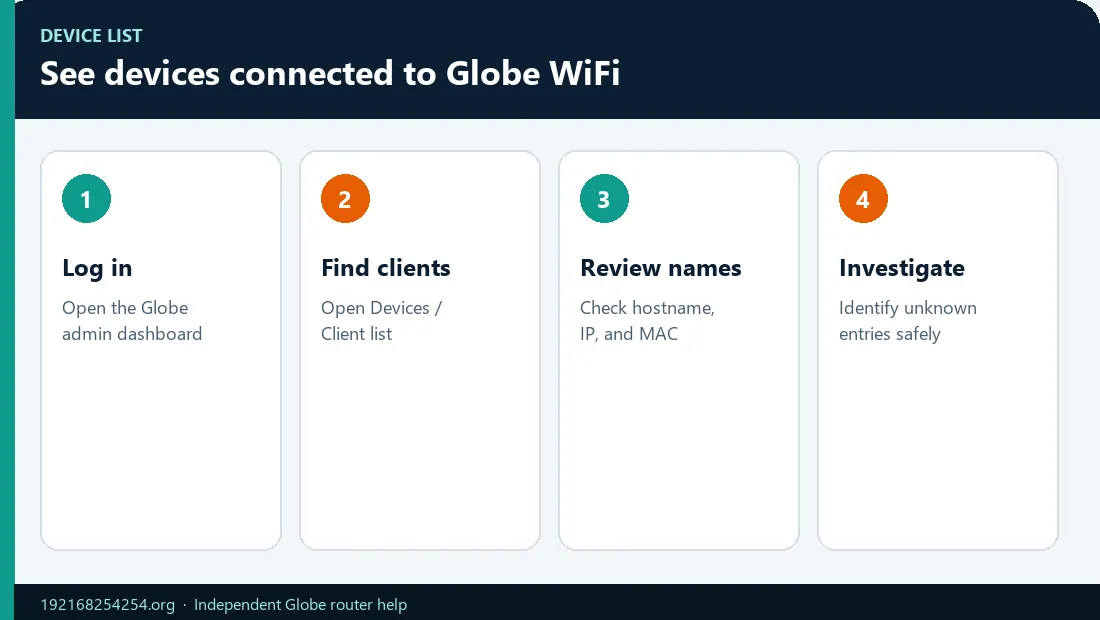
1. Open the router dashboard
Connect to the Globe network and open the modem IP shown on the label or your active gateway. Supported Home Prepaid WiFi instructions use http://192.168.254.254/.
2. Sign in with the router-admin account
Use the dashboard username/password, not the WiFi key or GlobeOne password. A limited user role may display clients but not allow blocking.
3. Find the client list
Look under one of these areas:
- Home or Status
- WiFi / WLAN
- LAN
- Connected Devices
- Device Management
- DHCP
- Network Map
- Access Control
The list can contain current wireless clients, wired clients, recently connected devices, or DHCP leases. Read the section label carefully.
4. Record the useful identifiers
For each entry, note:
- device/host name;
- local IP address, such as
192.168.254.10; - MAC address;
- WiFi band or connection type, if shown;
- current online/offline status;
- signal or connection time, if available.
The router's list is a useful starting point, but the displayed name can be missing, generic, user-editable, or stale.
Identify an Unknown Device Safely
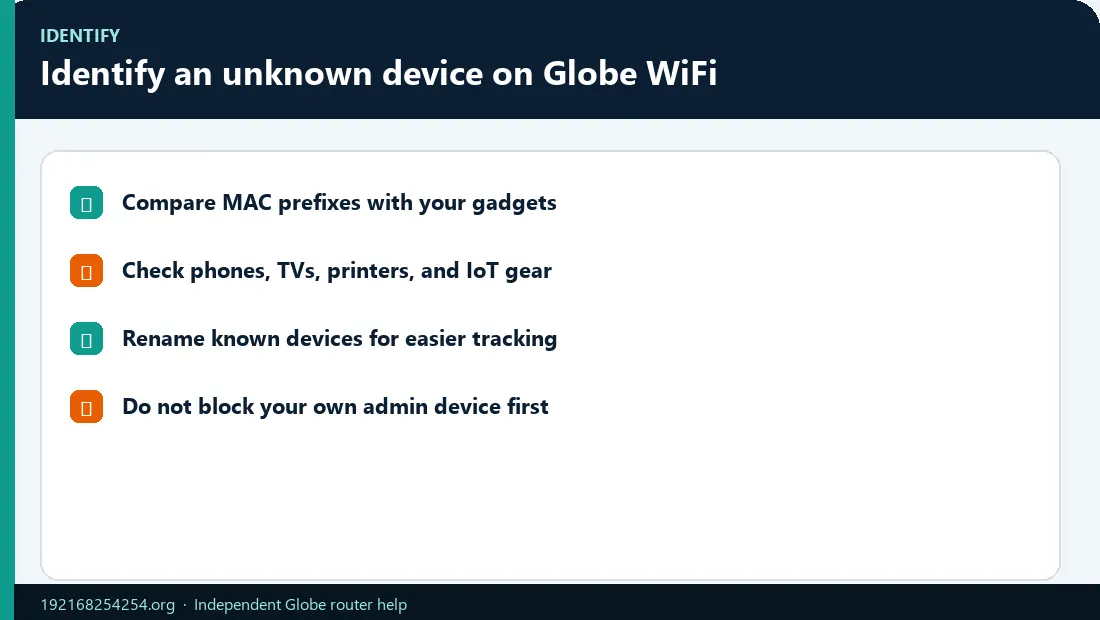
Use more than one signal.
Check the current MAC address on your own device
Android: Open Settings → Network & internet → Internet, tap the settings control beside the connected network, and find Randomized MAC address. Android Help specifically advises including both MAC addresses when configuring parental controls.
iPhone/iPad: Open Settings → WiFi, tap the information button beside the network, and inspect the private WiFi address for that network.
Mac: Open the connected WiFi network's details and inspect the private WiFi address setting.
Windows: Open the active network's hardware properties or run ipconfig /all and compare the Physical Address for the active WiFi adapter, while accounting for randomized hardware addresses.
Use a controlled disconnect test
- Choose one device you own.
- Record its current router-list entry.
- Turn that device's WiFi off—not the whole router.
- Refresh the client list after a short wait.
- Turn WiFi back on and confirm which entry returns.
Repeat one device at a time. A recent-device or DHCP list may retain an entry after disconnection, so use its status and timestamp rather than expecting immediate deletion.
Compare function and timing
A generic name such as android, unknown, ESP_..., or a manufacturer name can belong to a phone, TV, camera, smart plug, printer, or appliance. Check which household device was active at the same time.
Why a Familiar Device Can Show a Different MAC Address
MAC randomization protects privacy by using a non-factory address on WiFi networks. Android enables randomized MAC behaviour on modern versions, and Apple devices use private WiFi addresses. Depending on operating-system settings, the address can be persistent for one SSID or rotate under certain conditions.
This means:
- a known phone may appear under an unfamiliar MAC;
- forgetting/rejoining or changing privacy settings can alter how it appears;
- parental controls tied to an old address may stop applying;
- an allowlist can block a legitimate device after its address changes.
Apple recommends leaving private addresses enabled on networks that support them. Instead of disabling privacy on every device, first record the private address used on your home SSID and configure the router with that value if the feature requires a MAC.
Block a Device on Globe WiFi
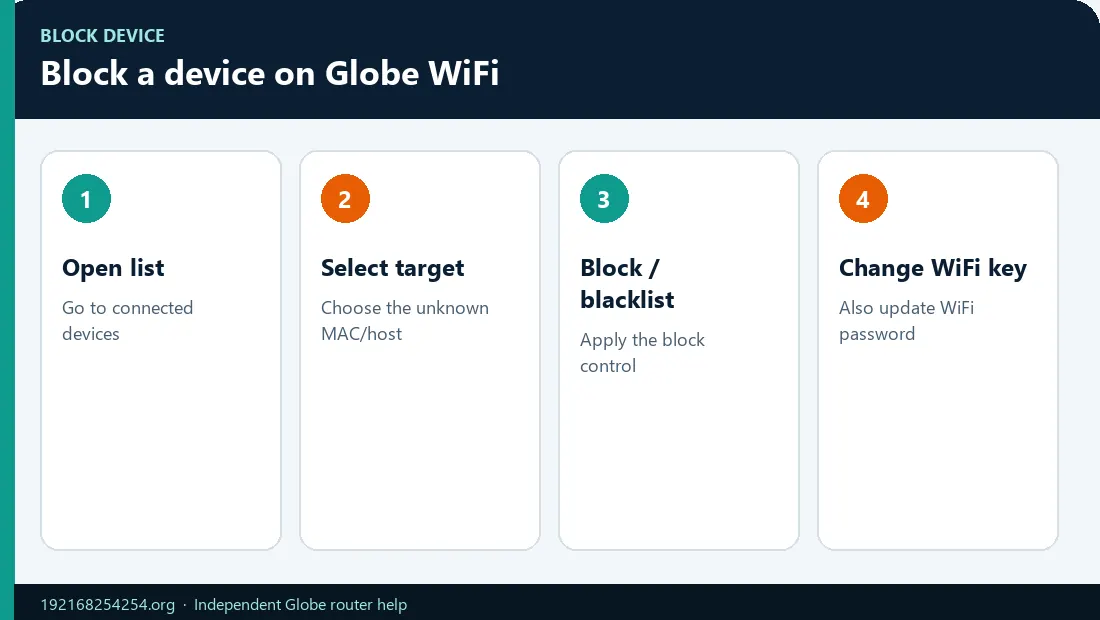
The exact feature depends on the model and firmware.
Method 1: Block from the connected-device list
- Select the verified device entry.
- Choose Block, Pause, Disable Internet, or a similar control.
- Confirm that the target MAC and name match your notes.
- Save/apply and check that your management device remains connected.
Method 2: Add it to a blacklist or deny list
- Open Access Control, Blacklist, Deny List, or MAC Filter.
- Choose a deny/block mode—not an allow-only mode unless you understand its effect.
- Add the target device's current WiFi MAC address.
- Save and test.
TP-Link's official access-control guidance distinguishes a Deny List, which blocks selected devices, from an Allow List, which blocks everything except approved entries. Globe-supplied equipment may use similar concepts but different menus.
Method 3: Change the WiFi password
This is the strongest general response when an unauthorized person knows the current password or the router lacks per-device controls:
- Choose a new, unique WiFi password.
- Save it for the relevant 2.4/5 GHz or unified network.
- Reconnect only approved household devices.
- Change the router-admin password if it is still default or may be known.
Follow the complete Globe WiFi password change guide.
Remove, Block, Pause, and Delete Are Not the Same
| Control | Likely effect |
|---|---|
| Block / Deny / Blacklist | Prevents the selected MAC address from gaining access, subject to model behaviour |
| Pause / Disable Internet | Temporarily stops internet access but may leave the device associated with WiFi |
| Delete from list | May remove only a saved/history entry; the device can reconnect if it knows the password |
| Forget lease / Clear DHCP entry | Removes an address lease record; it is not necessarily an access-control rule |
| Allow list / Whitelist | Permits only listed devices and can lock out everything else if configured incorrectly |
| Change WiFi password | Forces all wireless clients to authenticate again with the new key |
Menu wording alone is not enough. After saving, test the intended device and confirm that authorized devices still work.
Avoid Blocking Your Own Device
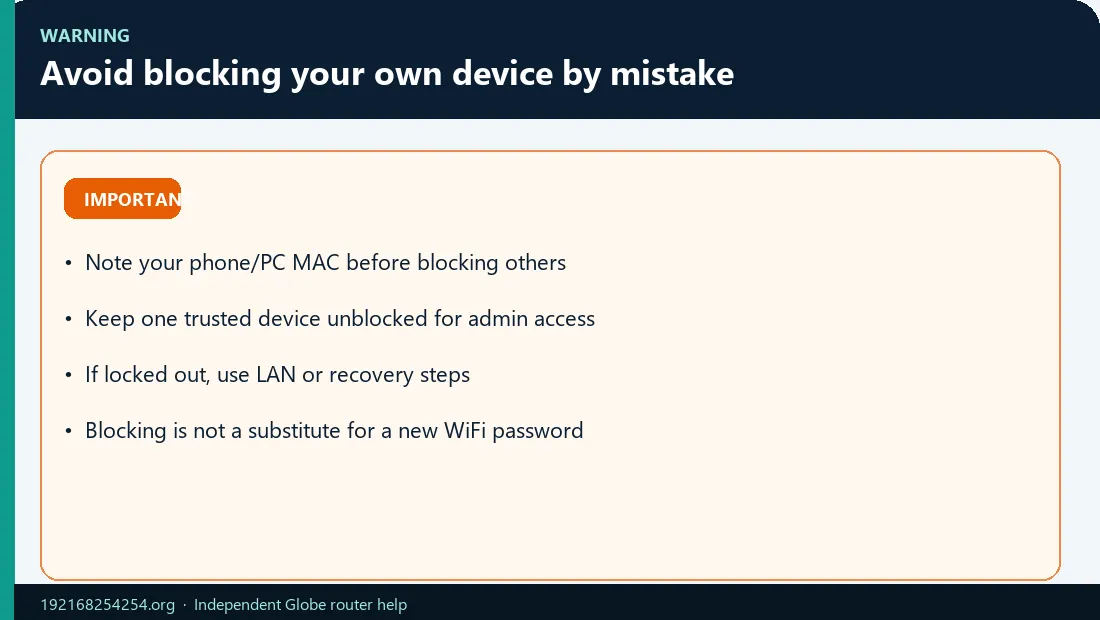
Before applying access control:
- mark the MAC/IP of the device currently managing the router;
- prefer a LAN-connected computer for risky changes;
- do not enable allowlist mode with an incomplete list;
- remember that the management device may be using a randomized MAC;
- make one change at a time;
- keep the admin credentials and model recovery instructions available.
If you block yourself but another authorized device still has access, use it to remove the rule. Otherwise try LAN access. A factory reset is the last resort because it removes far more than a block rule.
If You Find a Truly Unauthorized Device
- Save private evidence: current device list, time, SSID, and router logs if available.
- Change the WiFi password to a strong unique value.
- Reconnect only known devices.
- Change the router-admin password.
- Use WPA3 Personal where supported, or WPA2 Personal/AES for compatibility.
- Disable WPS and remote management if present and unnecessary.
- Check guest networks and remove unused ones.
- Update firmware through Globe or the manufacturer-approved process.
- Review the client list again.
Do not assume an unknown entry proves hacking until you rule out private MAC addresses, smart-home devices, visitors, old leases, and vague hostnames.
When the Client List Is Misleading
If the dashboard itself will not load, switch to the checklist to fix 192.168.254.254 login problems if the dashboard will not open before trusting any client-list entry.
Offline devices still appear
The interface may show DHCP leases or recently seen devices rather than only active clients. Look for Online, Active, Associated, Last Seen, or Lease Time.
One phone appears twice
It may have connected through 2.4 GHz and 5 GHz at different times, used a private address, changed network/privacy settings, or left an old lease record.
The device name is wrong
Hostnames are supplied by devices or inferred by routers and can be absent, duplicated, or user-controlled. Use the current MAC/IP and disconnect test.
A blocked device returns
It may be using a different randomized MAC, another band/guest SSID, or a shared password. Change the WiFi key and secure every active SSID.
No block button exists
Your login role or firmware may not expose access control. Use a supported app/model workflow or change the WiFi password. Do not use unverified superadmin credentials.
Frequently Asked Questions
How can I see who is connected to my Globe WiFi?
Log in to the router and open Connected Devices, Client List, Associated Devices, DHCP Clients, LAN Hosts, or a similarly named menu.
How do I remove a connected device from Globe At Home WiFi?
Use a verified block/deny control if supported. If not, change the WiFi password and reconnect only approved devices. Deleting a history entry may not prevent reconnection.
How do I block a device using my phone?
Connect the phone to the Globe WiFi, open the router dashboard, locate the client/access-control menu, verify the target device's current MAC, and apply a block. Menu availability depends on the model.
Why do I see an “unknown” device?
It can be an unauthorized client, but it can also be a known phone using a private MAC, a smart device with a generic hostname, or a stale DHCP entry.
Does changing the WiFi password disconnect everyone?
Yes. Wireless clients must reconnect with the new key. This is useful when the old password has been shared.
Can a blocked device bypass MAC filtering?
MAC filtering is not a substitute for strong encryption and a private password. Addresses can change or be spoofed. Use WPA2/WPA3 and change a compromised WiFi key.
Why did all devices briefly disconnect after I blocked one?
Some router interfaces restart the wireless service when applying access-control changes. Reconnect authorized devices and confirm the rule affected only the intended client.
Should I turn off private/randomized MAC addresses?
Usually no. Record the private address used for your home SSID and configure controls around it. Disable the feature only when a documented compatibility need outweighs the privacy benefit.
Sources
- Android: MAC randomization behaviour
- Android Help: Find the randomized MAC address
- Apple: Use private WiFi addresses
- TP-Link: Access Control, Deny List, and Allow List
- FTC: Secure your home WiFi network
- Globe: Setup Your Prepaid WiFi
Feature names and behaviour vary by router model, firmware, and login role.
Last reviewed: 2 October 2026