192.168.254.254 Login Admin
192.168.254.254 is a private local IP address used by some routers and Globe At Home devices in the Philippines. Connect your phone or computer to the router's WiFi or LAN, open http://192.168.254.254/ in the browser address bar, and sign in with the router-admin details printed on the device label.
Before you open it:
- Connect to the router's WiFi or a LAN port.
- Temporarily turn off mobile data and VPN for this test.
- Keep the modem or router label nearby.
Looking for 192.168 l 254.254?
The correct address is 192.168.254.254. It contains numbers and dots only. Use the number 1, not a lowercase or uppercase letter l.
Copy the correct URL exactly: http://192.168.254.254/
How to Log In to 192.168.254.254
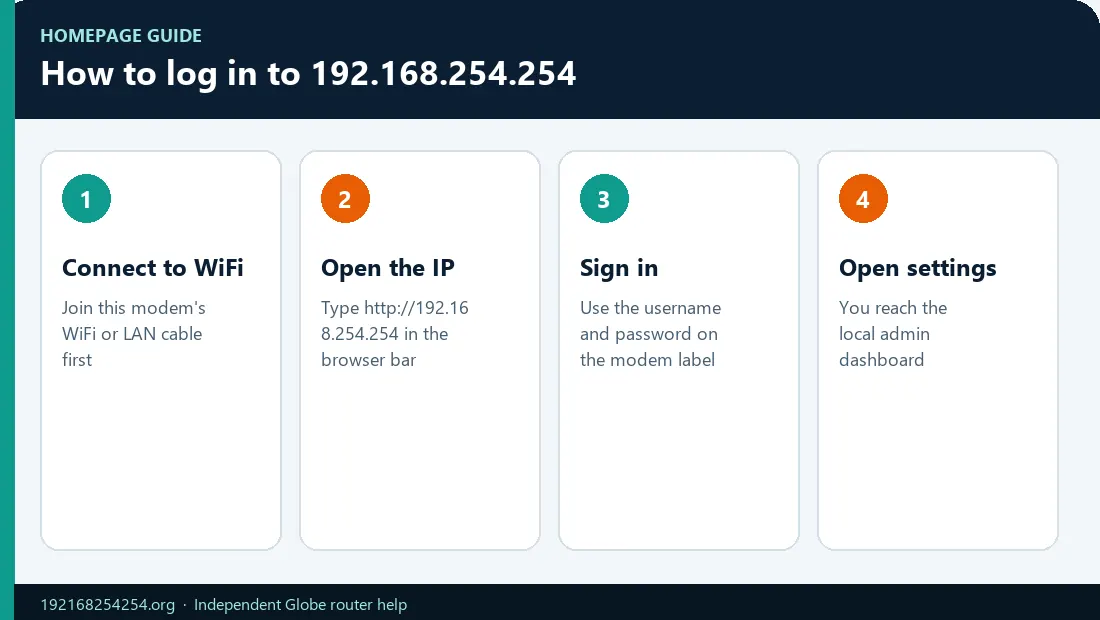
- Connect to the router. Join the WiFi network broadcast by the router, or connect a computer to a LAN port with an Ethernet cable. A device on mobile data, a neighbour's WiFi, or another household network normally cannot reach this local address.
- Open a browser. Chrome, Safari, Edge, or Firefox will work. Tap the address bar at the top of the browser—not a Google search box.
- Enter the exact address. Type
http://192.168.254.254/and press Enter or Go. Globe uses this HTTP address in its Home Prepaid WiFi setup instructions for supported equipment. - Use the router-admin credentials. Check the back or bottom label, the box, or the official guide for your exact model. The WiFi password and router-admin password may be different.
- Confirm the dashboard opens. Depending on the model and your login role, you may see menus named WiFi, WLAN, Network, Connected Devices, Security, LAN, Advanced, or System.
What happened?
- The dashboard opened: continue to what you can change.
- The page will not load: use the error-specific checks.
- The login was rejected: first identify the correct credential.
- The setting is missing: your model, firmware, or login role may restrict it; see the Globe and model guidance.
Video Guide: How to Log In to 192.168.254.254
Which Username and Password Should You Use?
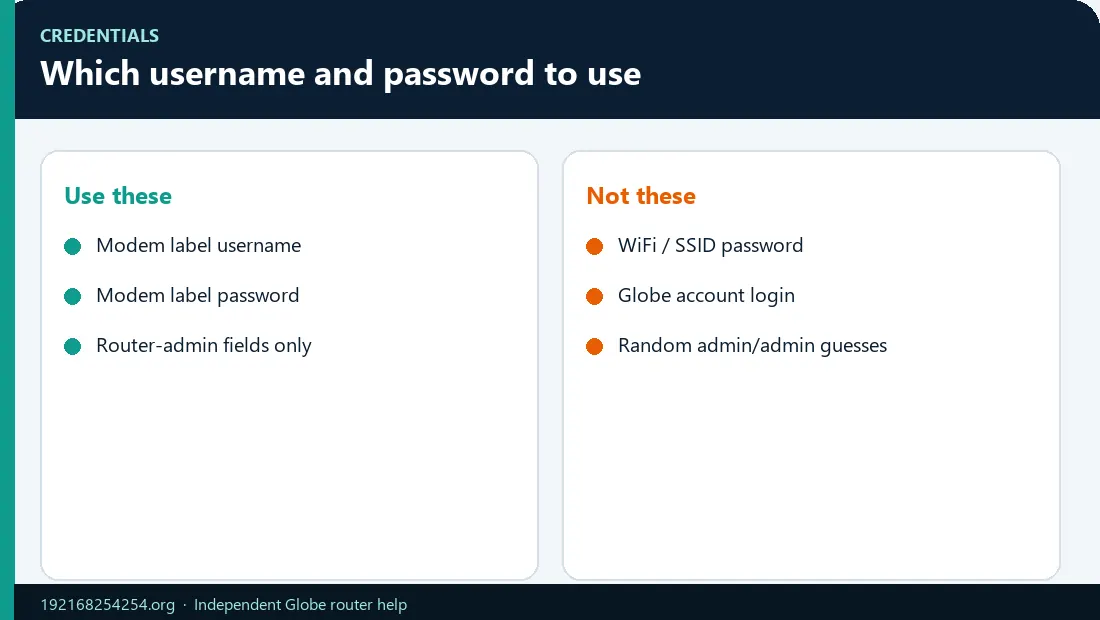
“The password” can mean four different things. Using the wrong type is one of the most common reasons a login fails.
| Credential | What it does | Where to find it |
|---|---|---|
| WiFi or WLAN key | Connects a phone, computer, or smart device to the wireless network | Router label or the current WiFi settings |
| Router-admin username and password | Opens the local configuration dashboard | Router label, official guide for the exact model, or a value previously changed by the owner |
| GlobeOne credentials | Opens your Globe account in the app | Your GlobeOne account; these are not normally used on the router login form |
| Prepaid WiFi number or OTP | Registers or verifies a service or account | Device details, SMS, or the dashboard inbox, depending on Globe's workflow |
There is no universal username and password for every router at 192.168.254.254. Many websites publish admin/admin, but it will not work on every Globe device, model, firmware version, or configured router. Use a default pair only when the device label or the official instructions for your exact model confirm it.
Credentials can be case-sensitive. Check capital letters, spaces, and similar-looking characters. If the router was installed or configured before, the admin password may already have been changed. Stop repeated guessing if the interface reports a temporary lockout.
Never use credentials described online as leaked “superadmin” access. A normal login may show fewer menus because the ISP-managed firmware or your account role intentionally limits changes.
For the full decision tree, see how to find your 192.168.254.254 username and password.
Globe At Home Router Login
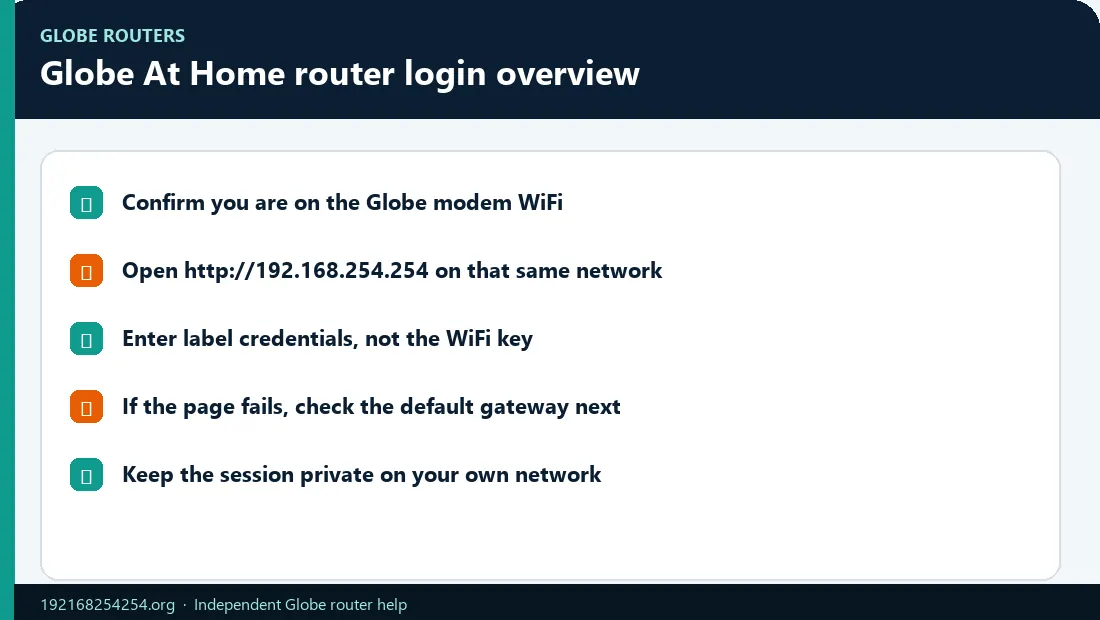
Globe documents 192.168.254.254 for supported Home Prepaid WiFi setup flows. However, not every Globe modem, router, ONU, or ONT uses the same address, page, or credentials. Some official Globe instructions use globebroadband.net for certain prepaid equipment. The device label and the active default gateway on your phone or computer are the best evidence for the equipment in front of you.
Use this verification sequence:
Check the label → identify the model → confirm the gateway → use the matching instructions
Globe Home Prepaid WiFi
Connect to the SSID printed on the device label using its WiFi key. Open the IP address or hostname shown by Globe or on the label, and then use the separate dashboard credentials if listed. Globe's Home Prepaid WiFi information also explains where to find device details. Registration or OTP tasks may use a number, SMS, or dashboard inbox; those details are not automatically the admin login.
Globe GFiber and Globe At Home Fiber
Fiber installations can use different hardware and ISP-managed firmware. A credential or menu path written for an older Huawei, FiberHome, or ZTE model should not be assumed to work on a current unit. The same-looking device can also expose different controls under different user roles. If the dashboard opens but an advanced field is absent or read-only, use the exact model guide or contact Globe instead of forcing access.
Globe At Home 5G WiFi
Newer 5G equipment may use a device screen, an app, or a different web-interface workflow. Inspect its display and label before assuming that 192.168.254.254 applies. Use Globe's current 5G WiFi help for device-specific setup and troubleshooting.
Continue with the Globe router login instructions or identify your Globe router model.
What Can You Change After Login?
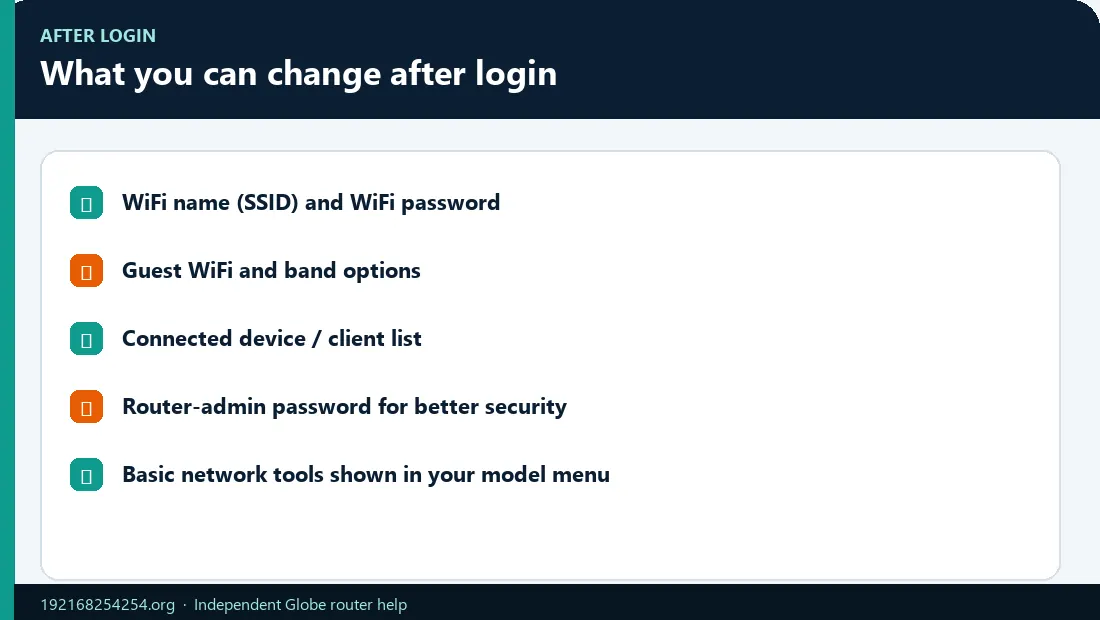
The exact menu names vary by router model, firmware, and login role, but the dashboard may let you manage these common settings:
| Your goal | Menu terms you may see | What happens | Detailed guide |
|---|---|---|---|
| Change the WiFi password | WiFi Security, WLAN Security, Pre-Shared Key, WPA Key | Connected devices must join again with the new key | Change Globe WiFi password |
| Change the WiFi name | SSID, WLAN Name, Network Name | The old network name disappears and the new one becomes visible | Change Globe WiFi name |
| View connected devices | Client List, Associated Devices, DHCP Clients | Device names and MAC addresses may be unfamiliar | See devices on Globe WiFi |
| Manage WiFi bands | 2.4 GHz, 5 GHz, Band Steering, Unified WiFi | Networks may be combined or shown as separate SSIDs | Find the model guide |
| Change the admin password | Account, System, Administration | This does not necessarily change the WiFi password | Admin credential guide |
| Restart the router | Reboot, Restart, System Tools | Normally keeps the current settings | Restart or reset safely |
Before changing an unfamiliar LAN, WAN, VLAN, DNS, firewall, or port-forwarding setting, record its current value. A wrong network or ISP setting can interrupt access or internet service.
192.168.254.254 Not Working? Identify the Exact Problem
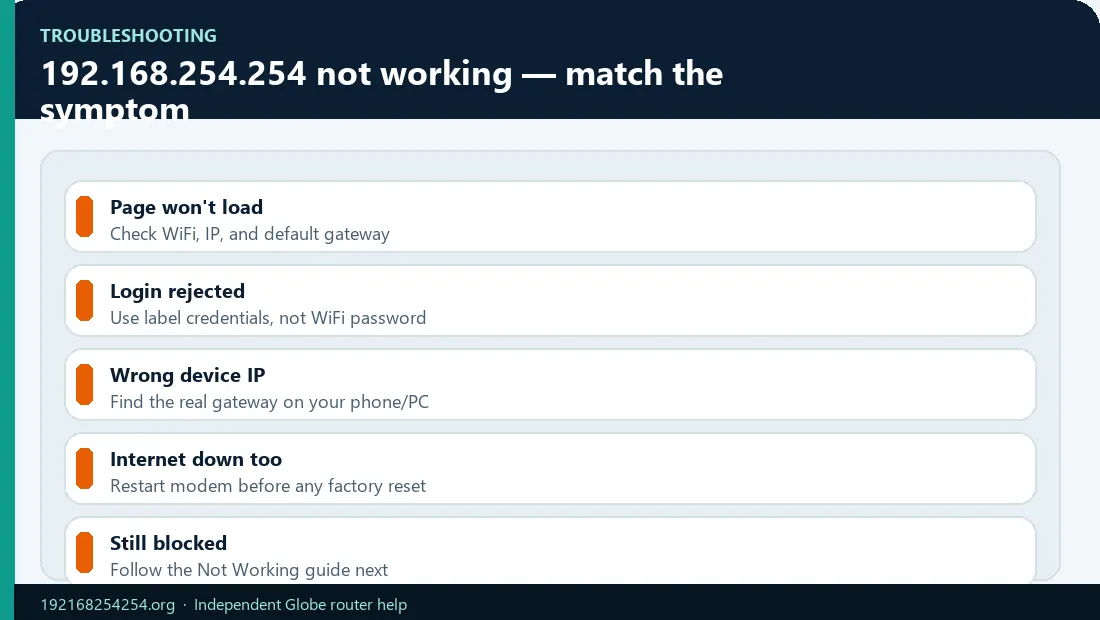
Do not reset the router immediately. First determine whether the local admin page and the internet are working independently.
| Admin page | Internet | What the result suggests |
|---|---|---|
| Works | Works | The local connection is normal; continue with login or configuration |
| Works | Fails | The LAN is working; check WAN status, signal, load balance, outage, cables, or provisioning |
| Fails | Works | Confirm the gateway; the cause may be a guest network, isolation, browser behaviour, or a second router/mesh topology |
| Fails | Fails | Check router power, WiFi/LAN connection, DHCP, cables, and PON/LOS or signal indicators |
Google results appear instead of the login page
The IP was probably typed into a search field. Select the browser's address bar, delete the current text, paste http://192.168.254.254/, and press Go. Do not add www.
“This site can't be reached” or the page times out
Make sure the device is connected to the intended router, not mobile data, a guest network, or another WiFi network. Turn off a VPN temporarily for this local test. Then check your active default gateway. If it is not 192.168.254.254, open the gateway shown by your device instead.
Also inspect the device's local IPv4 address. An address beginning with 169.254 is an IPv4 link-local address and can indicate that the device did not receive normal network settings from DHCP. Reconnect to WiFi or restart the router before troubleshooting the login page further. See RFC 3927 for the link-local address range.
“Connection refused”
A refusal is not the same as a timeout. The local device may be reachable while its web-management service, protocol, or port is unavailable or restricted. Try the documented http:// address, confirm the current gateway, and use the instructions for the exact model. Do not assume that adding https:// will fix it.
“Your connection is not private”
First confirm that the address is exactly 192.168.254.254, that you are on your own router's network, and that the page is not a lookalike public domain. For equipment whose official setup guide specifies HTTP, use http://192.168.254.254/ rather than forcing HTTPS.
Do not bypass a certificate warning or enter admin credentials on an unfamiliar internet domain. A private IP describes local routing; it does not prove that every page or prompt is trustworthy.
Username or password is incorrect
Confirm that you are entering the router-admin credentials rather than the WiFi key, GlobeOne password, or prepaid OTP. Check the label, model, capitalization, and whether the owner or installer changed the value. Avoid cycling through long online password lists.
Login works but a setting is missing
Your login role may have limited permissions, the model may not support the feature, or Globe-managed firmware may hide or lock the setting. Use model-specific documentation or Globe support. Do not use unverified superadmin details from a forum.
For browser permissions, mesh/bridge cases, blank pages, login loops, and advanced checks, see how to fix 192.168.254.254 login problems.
Check Whether 192.168.254.254 Is Your Actual Router IP
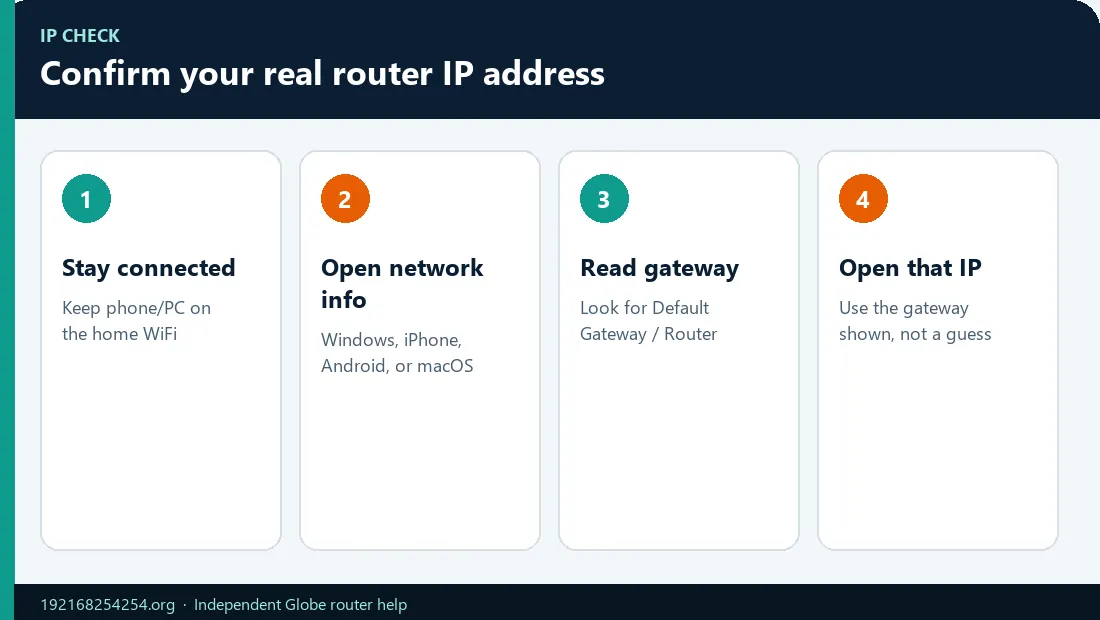
The router's current default gateway is more reliable than a generic online list.
| Device | Where to check |
|---|---|
| Windows | Open Command Prompt, run ipconfig, and read Default Gateway under the active WiFi or Ethernet adapter. Microsoft documents the ipconfig command. |
| macOS | Open WiFi details, choose TCP/IP, and read Router. The wording may differ by macOS version. |
| iPhone or iPad | Settings → WiFi → tap the information button beside the connected network → Router |
| Android | Open the connected WiFi network's details and look for Gateway or Router. Labels vary by manufacturer. |
- If the result is
192.168.254.254, use the login steps on this page. - If another private address appears, open that address instead.
- If no gateway appears, or the device has a
169.254.x.xaddress, fix the local connection or DHCP problem first. - If you are connected through a mesh node, extender, guest network, or second router, the upstream Globe interface may be on another subnet.
See the complete device instructions to find your router IP address and default gateway.
What Happens After You Change the WiFi Name or Password?
When you click Save or Apply, the phone or computer making the change will normally disconnect. That is expected—not proof that the router is broken.
- Wait for the WiFi radio to restart.
- Find the new SSID in the WiFi list.
- Join it with the new WiFi password.
- Reconnect every other phone, computer, TV, camera, and smart device.
- If 2.4 GHz and 5 GHz have separate names or keys, confirm which band you changed.
If the new password is rejected, forget the saved network profile and join again carefully. If the SSID was hidden or broadcast was disabled, the network may not appear in ordinary scans. If available, use a LAN-connected computer and the instructions for the exact model. Do not factory-reset merely because the old WiFi name disappeared.
Follow the full procedure to change and recover your Globe WiFi password.
Restart or Factory Reset? Do Not Confuse Them
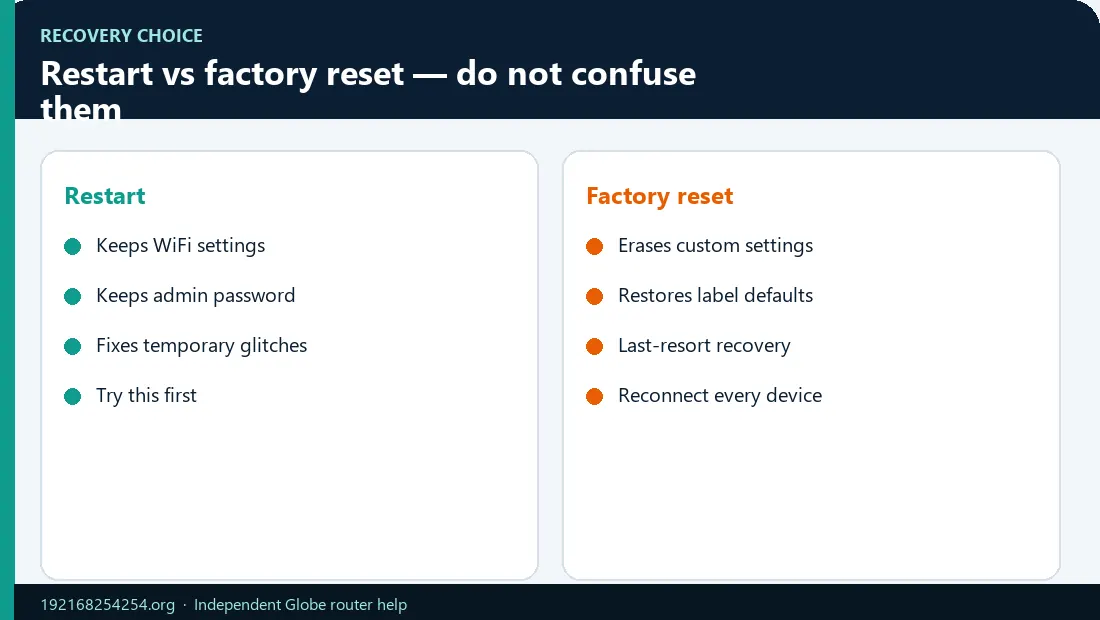
| Action | What it does | Are settings kept? | When to use it |
|---|---|---|---|
| Restart or reboot | Turns the device off and back on, or restarts its software | Normally yes | First response to a temporary connection or dashboard problem |
| Factory reset | Restores the device to factory defaults | No; WiFi, admin, and ISP-related settings may be erased | Last resort using verified instructions for the exact model |
There is no safe universal instruction to hold every router's reset button for 10, 20, or 30 seconds. Timing, button behaviour, and recovery steps depend on the model.
Use this safer order:
Confirm the credential type → check the label → verify the gateway → restart → try another connected device or browser → contact Globe or model support → reset only with exact model instructions
Read how to reset a Globe router and recover access safely before using the reset pinhole.
What Is 192.168.254.254?
192.168.254.254 is an IPv4 address made of four numeric octets. It is inside the private-use 192.168.0.0/16 block reserved for local networks. IANA and RFC 1918 define this private address space.
A private address is not normally routed across the public internet. Different homes and businesses can reuse 192.168.254.254 because each network is separate. This is why the same address can open one router in your home and a completely different device elsewhere.
The address is not automatically a router or default gateway. A network can assign it to a modem-router, ONU/ONT, repeater, printer, card printer, or another local device. It becomes your default gateway only when your network configuration points clients to it.
The subnet mask determines the network and host portions. It is incorrect to say that 192 is always the network ID and 168.254.254 is the device ID. As one qualified example, if the network actually uses 255.255.255.0 or /24, then 192.168.254.0 is the network address, 192.168.254.255 is the broadcast address, and .254 is a usable host address. A different prefix changes that interpretation.
The IP address alone does not reveal the router brand, exact model, owner, public IP, internet provider, or correct password. Those facts require evidence from the device label, login-page branding, active gateway, firmware, or service records.
Router Models and Other Devices Using This Address
192.168.254.254 is associated with some Globe installations, but it is not exclusive to Globe. Other routers, network equipment, and devices may use the same private address. Conversely, a Globe device may use a different gateway.
Before following a brand-specific procedure, confirm:
- the manufacturer and model number on the label;
- the service family, such as Home Prepaid WiFi, GFiber, or 5G WiFi;
- the active default gateway;
- the interface branding and firmware version, if visible;
- whether your login role can edit the required setting.
Use the Globe router model guide for verified, model-specific paths. Avoid generic tables that assign dozens of brands or passwords to this IP without a source.
Secure the Router After Login
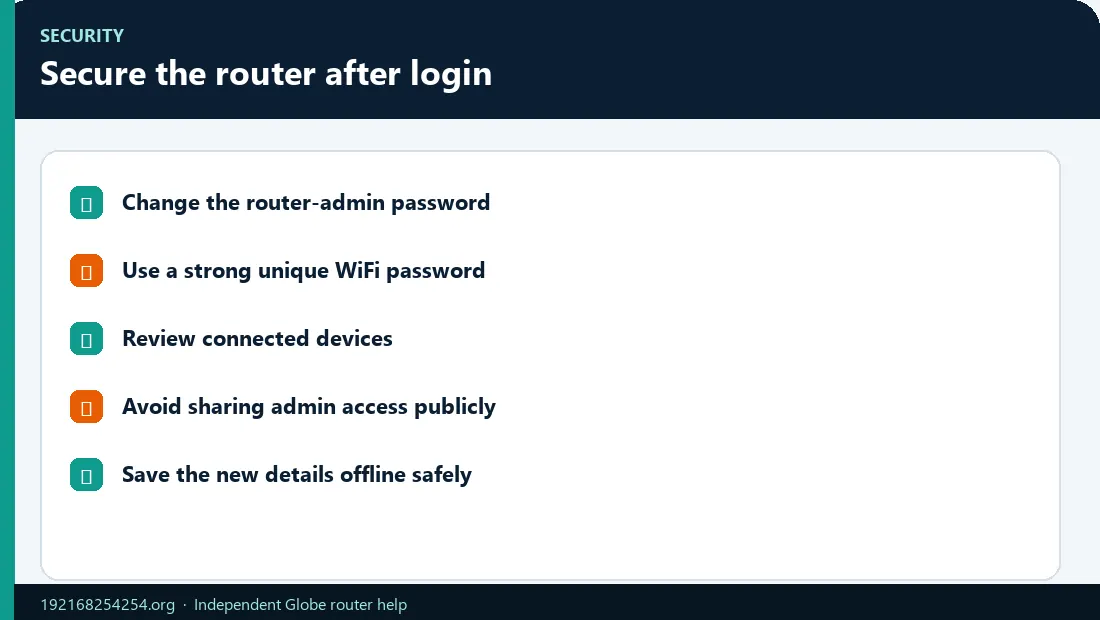
After you gain access, improve security without changing unrelated ISP settings:
- Change a confirmed default admin password. Use a unique password that is not the same as the WiFi key.
- Use a strong WiFi password. Avoid names, phone numbers, birthdays, or reused account passwords.
- Choose modern WiFi security. Use WPA3 Personal where all important devices support it. Otherwise use WPA2/WPA3 transitional mode or WPA2 Personal with AES for compatibility. Avoid WEP and old WPA modes.
- Disable remote management unless you specifically need and understand it. Local management is sufficient for most homes.
- Keep firmware current through Globe or the manufacturer's approved process. Do not install firmware from an unverified download site.
- Review connected devices carefully. An unfamiliar MAC address is not automatic proof of an intruder.
Modern Apple and Android devices can use private or randomized MAC addresses. A known phone may therefore appear under an unfamiliar identifier. Compare the MAC shown in that phone's WiFi details, its current local IP, and what disappears during a controlled disconnect/reconnect test before blocking anything. See Apple's private WiFi address guidance and Android's MAC randomization documentation.
The FTC's home WiFi security guidance and CISA's router security advice also recommend changing defaults and protecting router management. For identification and blocking steps, see how to manage devices connected to Globe WiFi.
Frequently Asked Questions
Is it 192.168 l 254.254 or 192.168.254.254?
The valid IPv4 address is 192.168.254.254. Every octet contains numbers only. Replace the letter l with the number 1, remove spaces, and keep one dot between each number group.
Can I open 192.168.254.254 using mobile data?
Normally, no. The page is served on the router's private local network, so connect to that router by WiFi or LAN. Turn off mobile data switching for the test if your phone keeps leaving a WiFi network that has no internet.
Why do I see Google results instead of my router login?
You entered the IP as a search query. Type http://192.168.254.254/ in the browser address bar and press Go. Do not add www, spaces, or letters.
Is admin/admin the default for every router?
No. Credentials depend on the exact model, firmware, service, login role, and whether the owner changed them. Check the device label and official model instructions before trying a default pair.
Is the WiFi password the same as the admin password?
Not necessarily. The WiFi key connects devices to the wireless network. The router-admin password authorizes changes in the configuration dashboard. They can be different even when both are printed on the same label.
Do I need working internet to open the router page?
Not always. A local admin page can open while the internet connection is down because local LAN access and WAN internet access are separate. You must still have a working local WiFi or LAN connection to the router.
Why does the browser say the connection is not private?
Some router interfaces use HTTP or a locally generated certificate that the browser cannot validate like a public website. Confirm the exact private IP and your own network, and use the protocol in the official model instructions. Never enter router credentials on an unfamiliar public domain.
Why did my WiFi disappear after I changed its name or password?
Saving the change normally disconnects clients. Look for the new SSID and rejoin it with the new key. Check both WiFi bands and whether SSID broadcast was disabled before considering a reset.
Should I factory-reset the router if I forgot the admin password?
Only as a last resort. First verify the credential type, inspect the label, confirm the model and gateway, restart, and contact Globe or the manufacturer. A factory reset can erase WiFi settings and ISP provisioning.
Is 192.168.254.254 used only by Globe?
No. It is a reusable private address, so other routers and devices can use it. Not every Globe device uses it either. The active gateway and device label decide whether it applies to your network.
Can this website see my router password when I click the login link?
No. The link navigates your browser directly to a local address on your network. This site does not provide a credential form, proxy the admin page, or receive the details you enter there. Always confirm that the browser address remains the correct private IP.
Sources, Review, and Independence
For editorial standards and independence, see our independent router-login research process.
This is an independent technical guide and is not Globe Telecom's login page. Globe product names are used only to identify relevant services and equipment. Router menus, credentials, and recovery procedures can change by model and firmware, so the device label and current official documentation take priority.
Primary references:
- Globe Home Prepaid WiFi setup
- Globe Home Prepaid WiFi device and dashboard information
- Globe prepaid WiFi information and alternate dashboard hostname
- Globe WiFi troubleshooting
- Globe Home Prepaid WiFi troubleshooting
- IANA private address explanation
- RFC 1918: Address Allocation for Private Internets
- Microsoft
ipconfigdocumentation - FTC guidance for securing home WiFi
Last reviewed: 2 October 2026
If you find a model-specific instruction that no longer matches your device, use the site's contact or corrections page and include the model number and firmware version. Never send your password, WiFi key, OTP, account number, or router configuration backup.